Google Find Hub Complete Guide
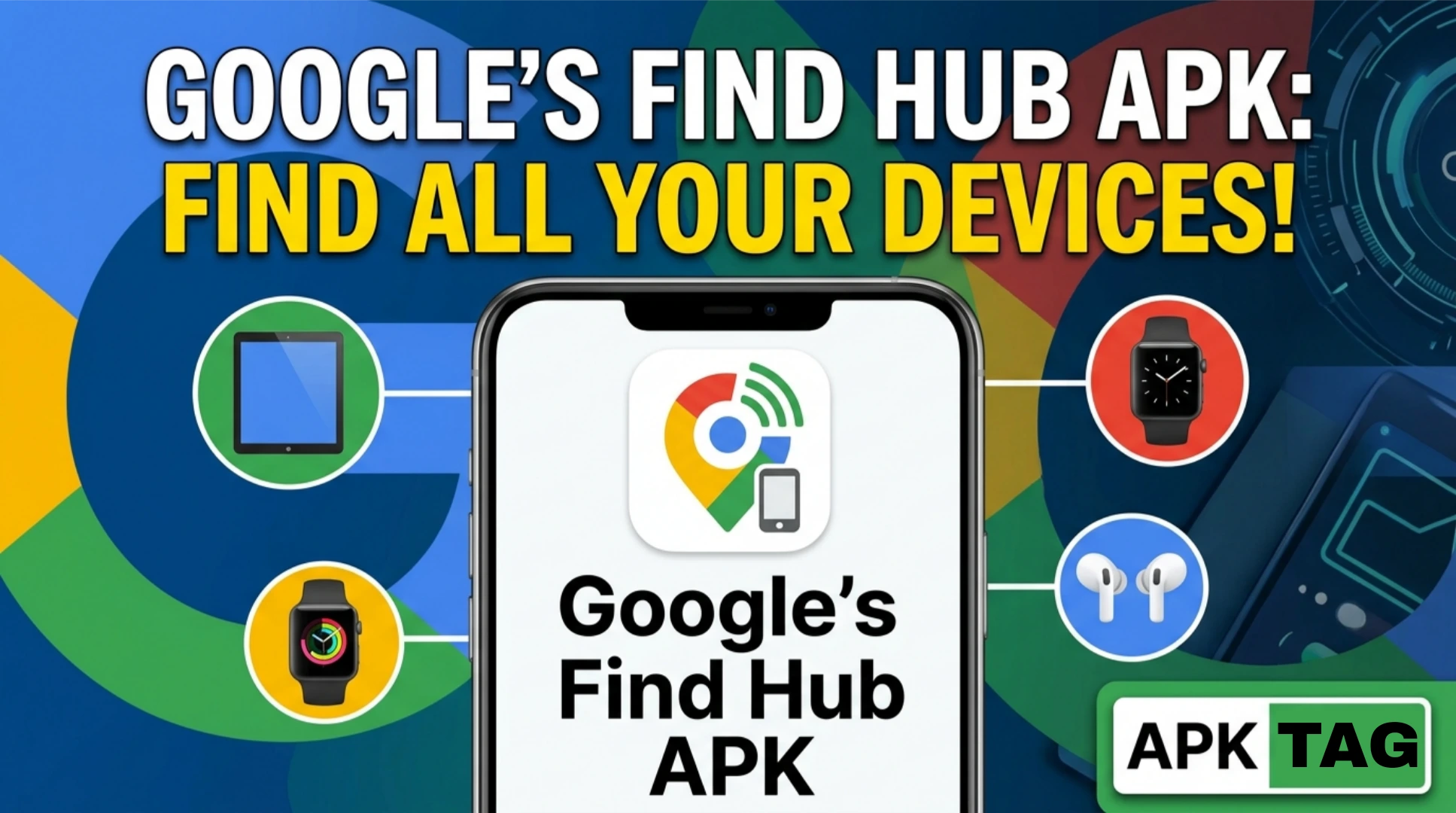
Google Find Hub is Google’s official device tracking and location sharing platform. Google rebranded its Find My Device service to Find Hub in 2025, expanding it beyond simple device location into a broader ecosystem for tracking devices, accessories, and sharing locations with trusted contacts. This article covers what Find Hub does, how to download and use it, its key features, and how it compares to its predecessor.
What Is Google Find Hub?
Google Find Hub is the evolution of Google’s Find My Device service. It serves as Google’s answer to Apple’s Find My network, creating a crowdsourced location tracking ecosystem for Android users and compatible accessories.
The service does two core things:
- Helps you locate your own lost or misplaced devices and accessories
- Lets you share your location with trusted contacts and see their locations in return
Find Hub works across Android phones, tablets, Wear OS smartwatches, Bluetooth trackers from third-party manufacturers, and other compatible accessories. Google built the service on a crowdsourced network similar to Apple’s Find My network, where nearby Android devices anonymously help locate your lost items without any device owner’s privacy being compromised.
Why Google Rebranded Find My Device to Find Hub
Google launched Find My Device years before Apple introduced its Find My network. For most of its existence, Find My Device handled only Google’s own devices: Android phones and tablets. It lacked the accessory tracking ecosystem that made Apple’s Find My network compelling.
Google rebranded to Find Hub alongside several significant expansions:
- Third-party Bluetooth tracker support from manufacturers including Chipolo, Pebblebee, and others
- A vastly expanded crowdsourced network using hundreds of millions of Android devices
- Improved location accuracy through ultra-wideband support on compatible devices
- Integration with Wear OS for smartwatch tracking
- Location sharing features previously handled through Google Maps
The Find Hub name reflects this broader scope beyond simply finding your phone.
Key Features
1. Device Location Tracking
Find Hub locates your Android phone, tablet, or Wear OS watch from any browser or the Find Hub app. When you mark a device as lost, the crowdsourced network of nearby Android phones picks up your device’s Bluetooth signal and anonymously reports its location back to you.
Location accuracy depends on:
- Whether your device is online and connected to a network
- Whether your device is near other Android phones in the crowdsourced network
- Whether your compatible device supports ultra-wideband for precision finding
2. Precision Finding
On devices that support ultra-wideband technology, Find Hub provides directional guidance to your lost item. Your phone’s screen shows an arrow pointing toward your lost device and a distance reading that updates in real time as you move toward it. This works similarly to Apple’s Precision Finding for AirTags.
Compatible devices include newer Pixel phones and select Android devices with UWB chips. Standard Bluetooth-based finding works on all Android devices regardless of UWB support.
3. Third-Party Tracker Support
Find Hub supports Bluetooth tracking accessories from third-party manufacturers. Chipolo, Pebblebee, and other compatible tracker brands integrate directly into the Find Hub network. You attach these small trackers to keys, bags, wallets, or other items and locate them through the Find Hub app alongside your Google devices.
This positions Find Hub as a direct competitor to Apple’s Find My network which supports AirTags and third-party accessories like Tile through its ecosystem.
4. Location Sharing
Find Hub incorporates location sharing features. You share your real-time location with trusted contacts: family members, close friends, or partners. Contacts you share with see your location on a map. You see theirs in return if they share back.
Location sharing requires mutual consent. Both parties choose what they share and for how long. Sharing periods range from one hour to indefinitely until manually stopped.
5. Play Sound
When your device is nearby but you cannot see it, Find Hub plays a loud sound on your device to help you locate it physically. The sound plays at maximum volume regardless of your current ringer setting. This works even when your phone is on silent mode.
For accessories like Chipolo trackers, the tracker itself plays a sound when triggered through the app.
6. Lock and Erase
If you believe your device is stolen rather than simply lost, Find Hub lets you:
- Lock your device remotely with a custom message and contact number displayed on the lock screen
- Erase all data on your device remotely if you determine recovery is unlikely
Remote erase is permanent and irreversible. All data on the device deletes completely. Use this option only when you are certain the device will not be recovered.
7. Offline Finding
Find Hub locates devices that are powered off or have no internet connection through the crowdsourced network. Nearby Android devices detect your offline device’s Bluetooth signal and anonymously relay its last known location to Google’s servers. You see the location through your Find Hub app without your device needing to be online.
Google implements this with end-to-end encryption. The nearby Android devices that help locate your device cannot see what they are locating or whose device it is.
8. Find Hub on Wear OS
Your Wear OS smartwatch appears in Find Hub alongside your other devices. If you misplace your watch at home, Find Hub plays a sound on the watch to help you find it. If your phone is nearby but misplaced, you trigger a sound on your phone directly from your watch through the Find Hub interface on Wear OS.
How to Download Google Find Hub APK
From Google Play Store
Find Hub is available on Google Play Store as a free download.
- Open Google Play Store on your Android phone
- Search “Google Find Hub” or “Find Hub”
- Select the app published by Google LLC
- Verify the developer shows as Google LLC before installing
- Tap Install
- Open the app after installation
- Sign in with your Google account
Pre-Installed on Android Devices
Many Android devices running Android 9 and above come with Find My Device or Find Hub pre-installed. Check your app drawer for Find Hub or search for it in Settings, Google, Find My Device. Google updates the pre-installed version to Find Hub through system updates on compatible devices.
From Google’s Official Web Interface
Find Hub also operates as a web service without requiring the app. Visit google.com/android/find on any browser. Sign in with your Google account. Your registered devices appear on the map immediately. This web interface provides the same core functionality as the app for locating and remotely controlling devices.
How to Set Up Google Find Hub
Step 1: Enable Find My Device on Your Phone
Before Find Hub locates your device, enable the underlying service on each device you want to track.
Go to Settings on your Android phone. Tap Security or Google. Find “Find My Device” or “Find Hub.” Toggle it on. The service activates and registers your device with your Google account.
Step 2: Confirm Location Permission
Find Hub requires location permission to provide accurate device tracking.
Go to Settings, Apps, Find Hub, Permissions. Confirm location access is set to “Allow all the time.” Without continuous location permission, Find Hub cannot report accurate device location when you need it most.
Step 3: Sign Into Find Hub App
Open the Find Hub app. Sign in with the same Google account linked to your Android device. Your registered devices appear in the device list. Each device shows its last known location and battery level.
Step 4: Add Tracking Accessories
If you have compatible third-party trackers such as Chipolo or Pebblebee devices, add them through Find Hub.
Tap the plus icon in the Find Hub app. Select “Add a tracker” or “Set up a device.” Follow the on-screen pairing instructions for your specific tracker. The tracker appears in your Find Hub device list alongside your phones and tablets.
Step 5: Set Up Location Sharing
To share your location with trusted contacts, tap the Location Sharing section in Find Hub. Tap Share Location. Select contacts from your Google contacts list. Choose a sharing duration. Send the invitation. When your contact accepts, you see each other’s locations in Find Hub.
Conclusion
The most important thing about Find Hub is setting it up before you lose anything. A device with Find My Device disabled or location permissions denied cannot be found after the fact.
Open Settings on your Android phone today. Enable Find My Device. Confirm location permission is set to “Allow all the time.” Download the Find Hub app from Google Play Store. Sign in with your Google account. Verify your device appears in the app.
This five-minute setup means your devices are recoverable from any browser or device the moment you need them. Google Find Hub gives you the same crowdsourced tracking capability that made Apple’s Find My network popular, built on the world’s largest Android device network.