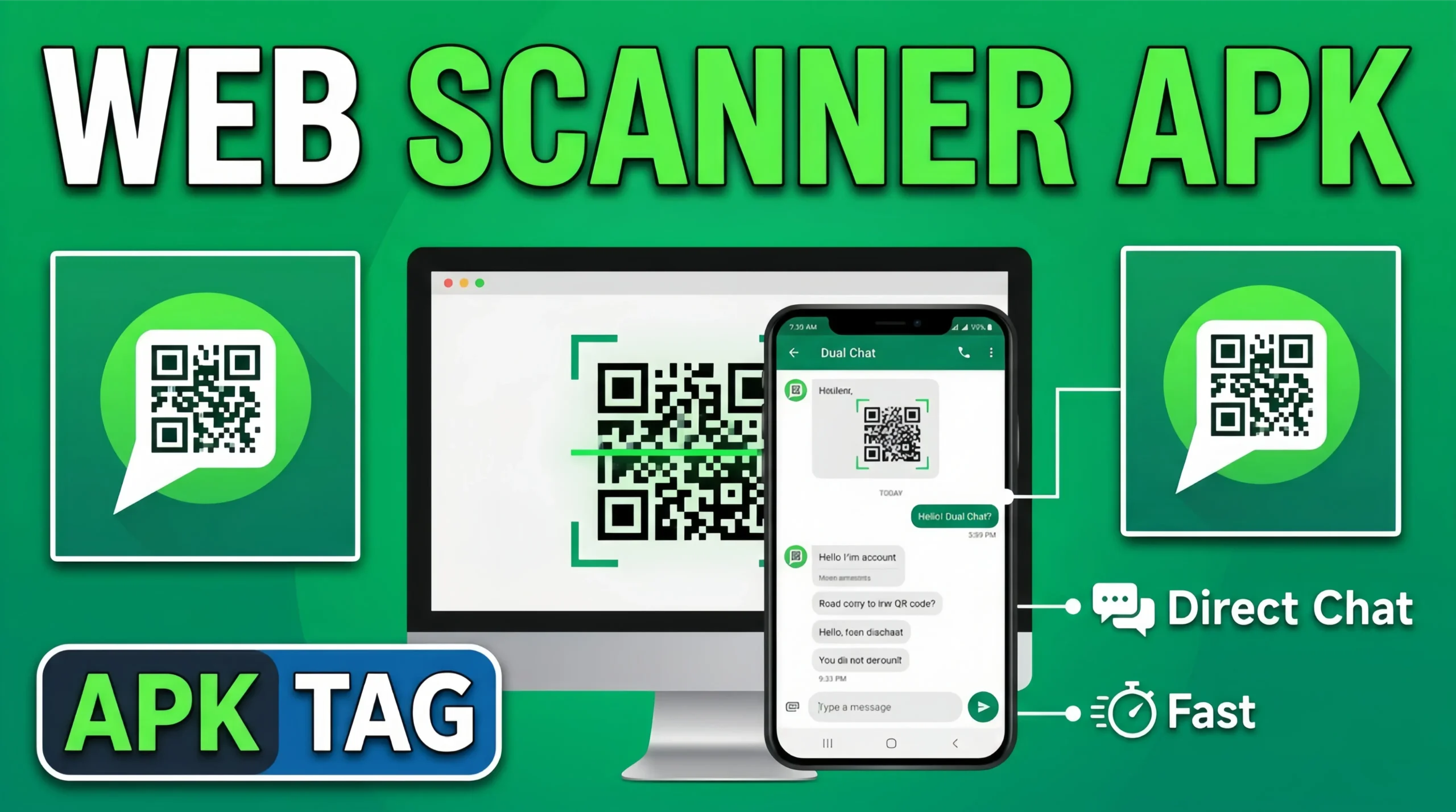
Web Scanner – Dual Chat App
Running two WhatsApp accounts on one phone while managing document scanning used to require multiple apps and constant switching. Web Scanner Dual Chat App puts both capabilities inside one interface. It handles your messaging accounts and physical document digitization without jumping between separate tools. This guide gives you a fresh, detailed look at the app from setup to daily use.
The Core Problem This App Solves
Most Android users carry one phone but operate in multiple communication contexts. A freelancer manages personal messages on one number and client conversations on another. A small business owner separates sales inquiries from family chats. A student tracks study group conversations while keeping personal messages private.
Official WhatsApp supports only one account per installation. Switching between numbers requires logging out and back in, which disconnects active conversations and frustrates anyone who needs both numbers accessible simultaneously.
Document scanning adds a second layer to the same problem. Professionals scan receipts, contracts, invoices, and signed agreements regularly. Sending those scans through WhatsApp requires opening a scanner app, saving the file, switching to WhatsApp, finding the contact, and attaching the file. That workflow wastes time on a task that happens dozens of times per week.
What Makes This App Different From Cloning Apps
Understanding the technical distinction matters before you install anything.
Cloning apps like Parallel Space or Dual Space copy the entire WhatsApp APK and run a second isolated instance on your device. This approach creates an unofficial WhatsApp environment outside Anthropic’s sanctioned channels. WhatsApp’s servers detect modified clients, and account bans occur with cloning apps far more frequently.
Web Scanner Dual Chat App takes a different approach. It uses WhatsApp’s official web protocol, the same system powering web.whatsapp.com. Your messages route through WhatsApp’s actual servers. The app functions as a browser wrapper around the official web client. WhatsApp designed the linked devices feature specifically for this use case.
Complete Feature Breakdown
Dual WhatsApp Web Sessions
The app stores and manages multiple WhatsApp Web sessions simultaneously. Each session connects to a different WhatsApp account through QR code scanning. Switch between sessions through the session tab without rescanning QR codes on every switch. Sessions persist between app restarts.
Mobile-Optimized WhatsApp Interface
WhatsApp Web accessed through a standard mobile browser delivers a suboptimal experience. Menus overlap, text sizes conflict with phone screen proportions, and navigation becomes awkward. Web Scanner wraps the web client in a mobile-optimized layout. Chat lists, contact search, media sharing, and voice message playback all adapt to phone screen dimensions correctly.
Document Scanner with Edge Detection
Point your rear camera at any physical document. The app’s edge detection algorithm identifies document boundaries in real time and overlays a highlight border on the detected edges. Confirm the selection or adjust corner points manually. Capture the scan with one tap.
The algorithm corrects perspective distortion automatically. Documents photographed at an angle produce flat, straight digital copies as output rather than trapezoidal distorted images.
Multi-Page PDF Creation
Scan multiple document pages sequentially. The app stacks them into a single PDF file. Rearrange page order within the PDF editor before saving. This suits multi-page contracts, reports, and booklets that need to arrive as one file rather than multiple image attachments.
Direct Share to WhatsApp Chat
After scanning, share the resulting PDF or image directly to any contact or group in a connected WhatsApp session without leaving the app. This single workflow handles the scan-and-send task that previously required navigating three separate applications.
OCR Text Extraction
Optical character recognition converts printed text in scanned documents into selectable digital text. Extract specific figures from an invoice, copy a tracking number from a shipping document, or pull contract clauses from a scanned agreement. The accuracy of OCR depends on print quality, font clarity, and scan lighting conditions.
Notification Delivery
The app delivers message notifications for all connected WhatsApp sessions. Incoming messages from either account trigger separate notifications. Tap the notification to open the specific session and chat thread directly.
Saved Scan Library
All scanned documents save to a dedicated in-app library organized by scan date. Rename files for easier retrieval. Delete outdated scans. Share any saved file to email, cloud storage, or messaging apps at any time.
Step-by-Step Setup Guide
Installing the App
Search “Web Scanner Dual Chat” on the Google Play Store for the safest installation. For APK installation, use APKPure or APKMirror. Download the most recent version. Scan the APK with Malwarebytes or Bitdefender before installation. Enable unknown sources in Settings under Security or Privacy if needed.
Connecting Your First WhatsApp Account
Open the app after installation. Navigate to the chat section. A QR code scanner interface appears. On your primary phone with WhatsApp installed, open WhatsApp, go to Settings, select Linked Devices, then tap Link a Device. Scan the QR code displayed in Web Scanner. Connection completes in under ten seconds.
Connecting Your Second WhatsApp Account
Tap the add session button in the session manager. A new QR code generates. Repeat the linking process with your second WhatsApp account on its corresponding phone. Both sessions now appear in the session switcher.
Naming Sessions
Label each session clearly. Name the first session “Personal” and the second “Business” or use your phone numbers as labels. Clear naming prevents sending messages from the wrong account during busy periods.
Setting Up the Scanner
Navigate to the scanner tab. Grant camera and storage permissions when prompted. Test the scanner on a nearby document to confirm edge detection works correctly on your device’s camera. Adjust lighting if the detection border appears unstable.
Real-World Performance
The WhatsApp Web client performs identically to web.whatsapp.com because it accesses the same backend. Message delivery speed, media upload times, and voice message playback all match the official web experience. Connection stability depends on your internet connection quality rather than the app itself.
Document scanning speed depends on three variables: camera resolution, ambient lighting, and processing power. On a mid-range device with adequate lighting, a single-page scan takes three to five seconds from capture to finished output. OCR adds another ten to fifteen seconds per page.
Multi-page PDF creation runs smoothly up to approximately twenty pages. Very long documents slow processing on budget devices. For documents exceeding twenty pages, split them into smaller batches.
Security Practices for Daily Use
Audit Linked Devices Regularly
Open WhatsApp Settings and check Linked Devices weekly. Remove any sessions you do not recognize. A session left active on a lost or stolen device gives full message access to whoever holds that device.
Protect Scanned Documents
Sensitive scans including identity documents, financial statements, and legal agreements need protection beyond default storage. Move them to an encrypted cloud storage folder immediately after scanning. Do not leave sensitive files in the app’s default scan library on a shared device.
Check Camera Indicator
Android 12 and above displays a green dot indicator when an app accesses the camera in the background. Verify Web Scanner does not activate the camera outside active scanning sessions. Background camera access has no legitimate purpose in this app.
Use Strong Device Lock
The app gives direct access to two WhatsApp accounts. Anyone who unlocks your phone accesses both. Use a strong PIN, password, or biometric lock on your device. Enable app lock if your Android version or launcher supports it.
Who Gets the Most Value From This App
- Freelancers billing clients through one number while keeping personal contacts on another
- Small business owners sending scanned invoices and contracts through WhatsApp daily
- Field workers scanning site documents and sending them to office contacts in one workflow
- Anyone who manages two WhatsApp accounts and currently uses two physical devices to do it
Conclusion
Web Scanner Dual Chat App delivers on its dual promise. The WhatsApp Web client manages multiple accounts through official protocols without cloning risks. The document scanner handles professional-quality PDF creation with edge correction and enhancement filters. The direct share workflow between scanner and chat removes unnecessary steps from a task millions of professionals perform daily.
Install from the Play Store. Audit your linked devices weekly. Protect sensitive scanned files with encrypted storage. This app earns its place on the home screen of any professional who manages multiple WhatsApp accounts alongside regular document handling.