Introduction
Touch screen test apps diagnose your Android display. They identify dead zones, ghost touches, and multi-touch failures. You check screen responsiveness. You verify calibration accuracy. You detect hardware defects before warranty expires.
What is a Touch Screen Test App?
A touch screen test app is a diagnostic tool. It detects touch input on your screen. The app displays grids, lines, and patterns. You tap, swipe, or draw on the display. The app registers each touch. It highlights areas that do not respond. It shows touch coordinates and pressure. It identifies faulty hardware or software issues.
Use Cases
You test after a screen replacement. You verify before buying a used phone. You diagnose ghost touches or unresponsive areas. You check multi-touch support for gaming. You calibrate stylus or glove input. You document defects for warranty claims.
Key Features of Touch Test Apps
Look for these capabilities in a reliable test app.
Multi-Touch Count
The app displays the number of simultaneous touches. You place multiple fingers on the screen. The app counts each finger. It highlights each touch point. You confirm your device supports 5, 10, or more touches.
Touch Tracing
You drag your finger across the screen. The app draws a colored line following your finger. The line shows continuous touch detection. Gaps in the line indicate dead zones. The app logs touch coordinates and pressure.
Grid and Pattern Tests
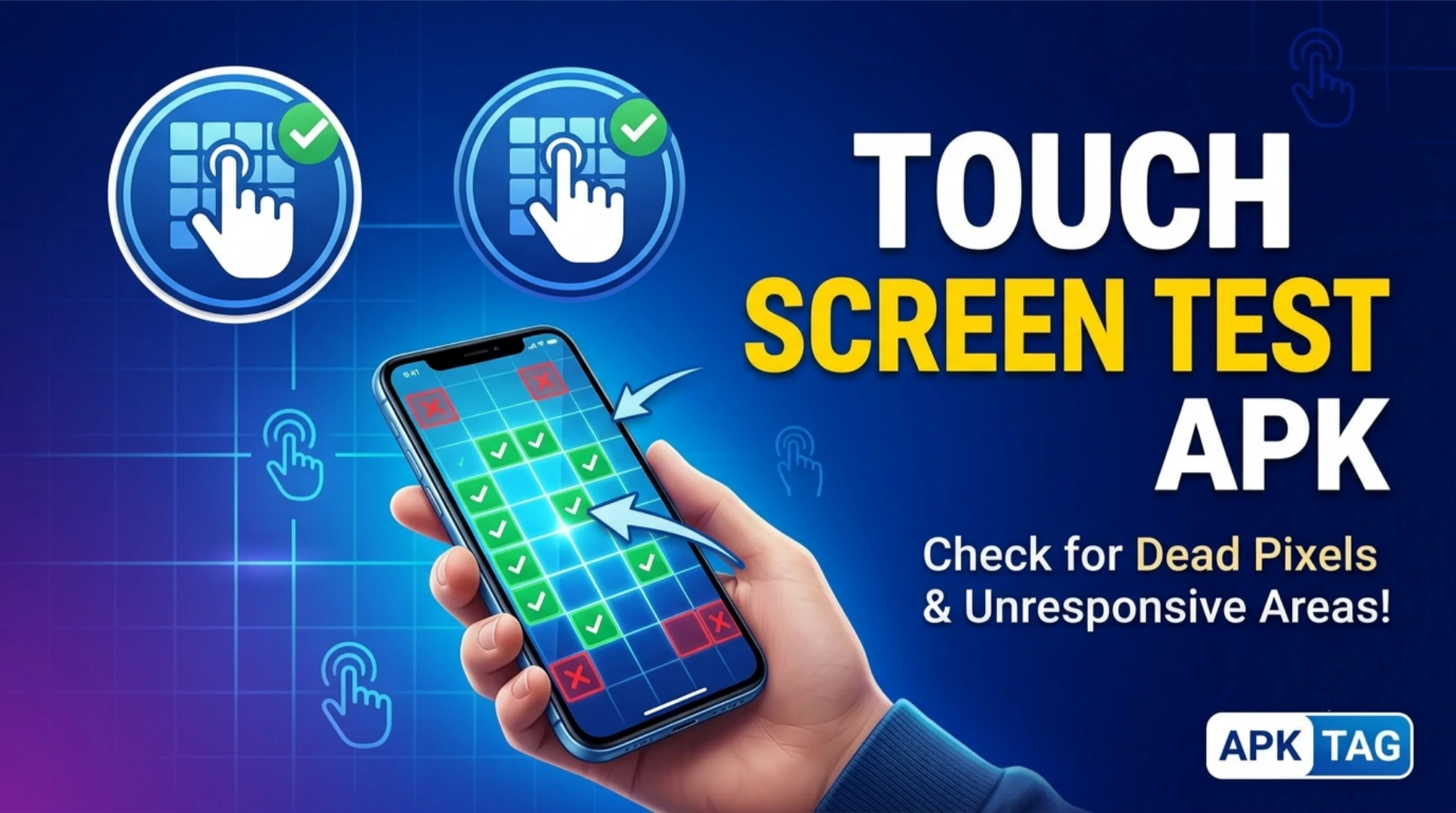
The app overlays a grid on your screen. You tap each square. The grid changes color when tapped. You complete all squares. This identifies unresponsive areas. The app also displays lines, circles, and random patterns.
Coordinate Display
The app shows the exact X and Y coordinates of each touch. It shows touch pressure (if supported). It shows finger width and area. This helps with calibration and precision testing.
Edge and Corner Detection
The app tests screen edges and corners. These areas often fail first. The app highlights each corner. You tap each corner. It registers a green check for each successful tap.
Swiping and Scrolling Tests
You perform smooth swipes across the screen. The app records the path. It detects skips or jumps. You test vertical, horizontal, and diagonal swipes. This simulates everyday scrolling and navigation.
Ghost Touch Detection
The app monitors for touches you did not make. It logs unintended inputs. You leave the phone on a flat surface. The app records any phantom touches. This indicates screen or digitizer failure.
Screen Calibration
The app helps calibrate your touch screen. It asks you to tap specific points. It adjusts sensitivity. This improves accuracy for stylus or glove use.
Top Touch Screen Test Apps
1. Touch Screen Test
This app is the most popular. Over 10 million downloads. Rating 4.4 stars. The interface is simple and clear. It includes all test types. The app provides pass/fail results.
2. Multi-Touch Tester
This app focuses on multi-touch performance. It displays a visual count of touches. It tracks up to 20 fingers. It includes a draw mode for tracing. Rating 4.3 stars.
3. Screen Test Pro
This app offers advanced diagnostics. It tests color accuracy and dead pixels. It includes a touch grid test. It provides detailed logs and reports. The app is paid but comprehensive.
4. Test Your Touch Screen
This app is lightweight and fast. It includes a simple tap test. It shows touch coordinates. It detects screen freeze and lag. Rating 4.2 stars.
5. Display Tester
This app combines touch and display tests. It includes flicker and burn-in tests. It tests color gradients and contrast. The touch test is a secondary feature.
Comparison
Touch Screen Test is best for general users. Multi-Touch Tester is best for gamers. Screen Test Pro is best for technicians. Test Your Touch Screen is best for quick checks.
How to Download and Install
Safe Method
Open the Google Play Store. Search for the app name. Select the official version. Tap install. Wait for completion. Open the app from your drawer.
APK Method
You can also download APK files. This carries risks. Only use trusted sources like APKMirror. Enable unknown sources in settings. Download the APK file. Tap to install.
Recommendation
Use the Play Store version. Play Store versions update automatically. Play Store versions are verified by Google. Play Store versions contain no malware.
Step-by-Step Testing Guide
Follow these steps for a complete screen diagnosis.
Step 1: Clean Your Screen
Wipe your screen with a microfiber cloth. Remove smudges, oil, and dirt. Clean screens respond accurately. Dirty screens cause false failures.
Step 2: Open the Test App
Launch the touch screen test app. Select the “Multi-Touch” or “Tap Test” mode. Grant any required permissions. The app does not need storage or location access.
Step 3: Test Single Touch
Place one finger on the screen. Move it across the entire surface. The app draws a line. Watch for gaps or breaks. A gap means a dead zone.
Step 4: Test Multi-Touch
Place 2 fingers on the screen. Then 3, 5, and 10 fingers. The app counts each touch. Confirm the count matches your fingers. If fingers disappear, the screen has a multi-touch fault.
Step 5: Test Edges and Corners
Tap each corner of the screen. Tap the center of each edge. The app registers each tap. If a corner does not register, that area is faulty.
Step 6: Test Swiping
Perform a slow, smooth swipe from top to bottom. Swipe from left to right. The app traces the path. Look for jumps or skips. A straight line indicates good detection.
Step 7: Test Ghost Touches
Place the phone on a flat, non-conductive surface. Do not touch the screen. The app monitors for 30 seconds. If the app registers touches, you have ghost touch issues.
Step 8: Review the Report
The app generates a test summary. It shows pass or fail for each test. It highlights faulty areas on a grid. Capture a screenshot of the report.
Interpreting Test Results
All Tests Pass
Your touch screen is in good condition. No further action is needed. The issue you experienced is likely software-related. Restart your device or update your software.
Dead Zones
Specific areas do not respond. This is a hardware defect. The digitizer is damaged. You need a screen replacement. Visit an authorized service center.
Multi-Touch Failure
The app does not count all fingers. This is common on budget devices. Some devices support only 2 touches. Check your device specifications. If the count is lower than specified, you have a hardware fault.
Ghost Touches
The app registers touches you did not make. This indicates digitizer failure. This also occurs with low-quality chargers. Try a different charger. If ghost touches persist, replace the screen.
Jagged or Skipped Swipes
The tracing line has jumps or gaps. The digitizer is inconsistent. This affects gaming and drawing. You need hardware repair.
Unresponsive Edges
Edges do not register touches. This is a common defect. It affects palm rejection and keyboard typing. The digitizer is misaligned or faulty.
When to Seek Professional Repair
Cracked Screen
A cracked screen always requires replacement. Cracks expand and worsen. The digitizer will fail.
Persistent Dead Zones
Areas that remain unresponsive after a restart. This will not fix itself. The digitizer is broken.
Ghost Touches
Phantom touches that continue in safe mode. This is a hardware issue. The digitizer needs replacement.
Unresponsive After Water Exposure
Water damages the digitizer. Clean and dry the device. If it does not respond, seek repair.
Warranty Status
If your device is under warranty, do not attempt repairs. Go to an authorized service center. Use the app report as evidence.
Tips for Buying Used Phones
Bring the Test App
Install the app on your current phone. Test the used phone before purchase. Run all test modes.
Test with the Owner
Run the test in front of the seller. If they refuse, do not buy the phone. The screen likely has issues.
Check All Corners
Used phones often have edge wear. Tap each corner multiple times. Ensure each tap registers.
Test Multi-Touch with 5 Fingers
Place 5 fingers on the screen. Swirl them around. All 5 points must remain visible. If any disappear, the digitizer is degraded.
Check Ghost Touches
Place the phone on the table. Wait for 30 seconds. If touches appear, the screen is defective.
Conclusion
Touch screen test apps are essential diagnostic tools. They save you time and money. They identify hardware defects before they worsen. They help you make informed buying decisions. Use the Play Store version for safety. Clean your screen before testing.