Google Family Link – Parental Controls for Android
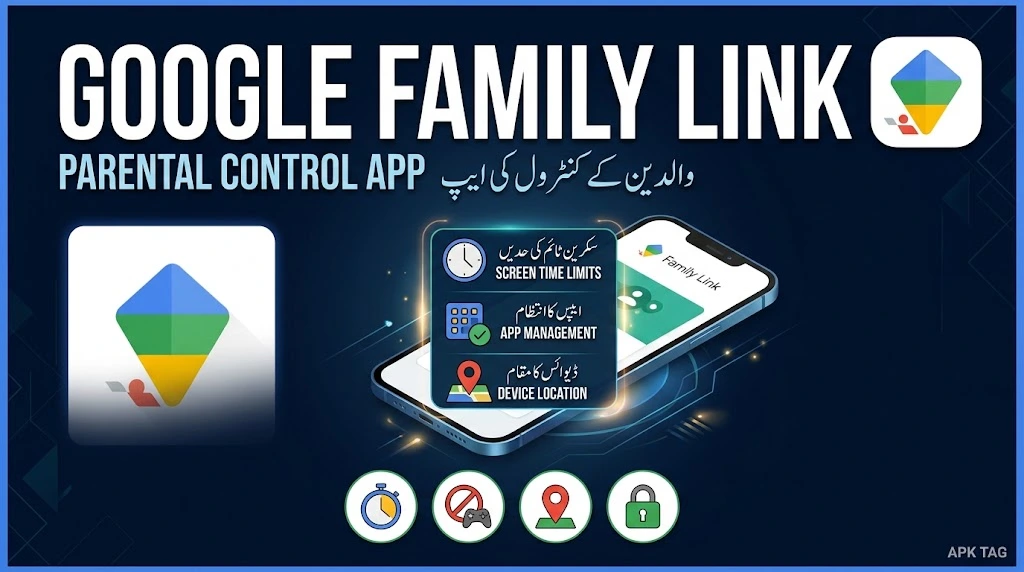
Google Family Link is a parental control application. It lets you manage your child’s Android device and Google account. You set screen time limits. You approve app downloads. You view your child’s location. You lock the device remotely. The app is free and official. It is available on the Google Play Store.
What is Google Family Link?
Family Link is a Google service. It allows parents to supervise their children’s digital activities. The app connects your child’s device to your own. You control what your child sees and does on their phone or tablet. Your child must be under 13 in most countries. Older children can also use the service with limited supervision.
Core Purpose
You manage your child’s screen time. You control app access. You monitor activity. You ensure online safety. You set digital boundaries.
Key Features
Screen Time Management
You set daily time limits for device usage. You set bedtime schedules. The device locks automatically during sleep hours. You extend time limits remotely if needed.
App Approvals
You approve or block app downloads. The child requests permission. You receive a notification on your phone. You approve or deny the request instantly.
Activity Reports
You view weekly and monthly activity summaries. The report shows app usage time. It shows total screen time. It shows which apps your child uses most.
Location Tracking
You see your child’s device location on a map. The feature requires the child’s device to have location services enabled. You check location in real time.
Remote Lock
You lock your child’s device from your phone. This is useful for bedtime or study time. The child cannot unlock it without your permission.
Account Management
You manage your child’s Google account. You reset passwords. You control search settings. You enable safe search filters.
Device Ring
You ring your child’s device from your phone. This helps locate a misplaced device. The child’s device rings at full volume.
Manage Contacts
You approve new contacts for Google services. The child must request to add a contact. You approve or deny each request.
How to Set Up Google Family Link
Requirements
You need a Google account. Your child needs a Google account (managed by you). Both devices need Android 5.0 or higher. You need a stable internet connection.
Step 1: Install Family Link on Your Device
Open the Google Play Store on your phone. Search for “Google Family Link.” Select the app by Google LLC. Tap install. Wait for completion. Open the app.
Step 2: Install Family Link on Your Child’s Device
On your child’s Android device, open the Play Store. Search for “Google Family Link.” Install the app. Open the app.
Step 3: Start Setup on Your Phone
Open Family Link on your phone. Tap “Get Started.” Select “Parent” role. Sign in with your Google account.
Step 4: Create or Link a Child Account
You have two options. Create a new Google account for your child. Or link an existing Google account. If your child already has a Google account, enter the email address. The system sends a request to link.
Step 5: Complete Setup on the Child’s Device
Open Family Link on your child’s device. Select “Child” role. Enter the child’s Google account email and password. Follow the on-screen instructions. The device sets up supervision.
Step 6: Review Supervision Settings
On your phone, you see a dashboard. Review the settings. Set screen time limits. Set app approval rules. Enable location sharing. Confirm the setup.
Step 7: Test the Controls
Lock your child’s device from your phone. Check that it locks. Try to install an app on the child’s device. Verify you receive a request. Approve the request and check the app installs.
Step-by-Step Usage Instructions
Setting Screen Time Limits
Step 1: Open Family Link on your phone. Select your child from the dashboard.
Step 2: Tap “Daily Limit.” Select “Set Limit.” Choose a time (e.g., 2 hours). The device locks when the time expires.
Step 3: Set “Bedtime.” Choose a start and end time. The device locks automatically during these hours.
Approving App Downloads
Step 1: Your child tries to download an app. They see a message that the request is sent to you.
Step 2: You receive a notification on your phone. Open Family Link. Tap the notification. Review the app name and permission.
Step 3: Tap “Approve” or “Block.” The child receives the decision instantly.
Viewing Activity Reports
Step 1: Open Family Link. Select your child.
Step 2: Tap “Activity.” You see a summary of screen time and app usage.
Step 3: Select “Last Week” or “Last Month.” View trends.
Finding Your Child’s Location
Step 1: Open Family Link. Select your child.
Step 2: Tap “Location.” The app shows a map. The child’s device location appears as a dot.
Step 3: Tap the refresh icon for updated location.
Locking the Device Remotely
Step 1: Open Family Link. Select your child.
Step 2: Tap “Lock.” The child’s device locks immediately.
Step 3: To unlock, tap “Unlock.”
Privacy & Security
Data Collection
Google collects limited data for Family Link. This includes app usage, location, and screen time. The data is used only for supervision. Google does not share this data with advertisers. You can delete the data at any time.
Permissions
Family Link requires location permission for tracking. It requires notification permission for approval requests. It does not access photos, messages, or contacts.
Child’s Privacy
The child can see what you monitor. They receive notifications when you lock or approve. They can see their own activity reports. This promotes transparency.
Account Security
Your child’s Google account is protected. You reset the password if needed. You enable two-factor authentication. This prevents unauthorized access.
Troubleshooting Common Issues
Child’s Device Not Syncing
Check the internet connection on both devices. Restart both devices. Open Family Link and refresh.
Location Not Showing
Enable location on the child’s device. Check that the device has GPS signal. Restart the app.
Screen Time Not Applying
Update the app on both devices. Check that the child’s device is not in safe mode. Restart the device.
App Approval Requests Not Arriving
Check notification settings on your phone. Ensure Family Link notifications are enabled. Restart your phone.
Child Can Bypass Controls
Reset the child’s device password. Remove any secondary accounts on the device. Enable supervision in the device settings.
Alternatives
Google Family Link (Official)
Best for Android devices. Full integration with Google accounts. Free and reliable.
Qustodio
Cross-platform for Android, iOS, and Windows. Monitors calls and SMS. Includes social media monitoring. Free and paid versions.
Kaspersky Safe Kids
Cross-platform support. Monitors location and screen time. Blocks inappropriate content. Free and paid versions.
Norton Family Premier
Cross-platform support. Tracks search history. Monitors social media. Paid only.
Kids Place
Open-source parental control. Locks the device to approved apps. Simple and free. Does not track location.
Tips for Effective Use
Set Clear Rules
Explain screen time limits to your child. Discuss why you monitor their activity. Establish a mutual understanding.
Use Bedtime Features
Set consistent bedtime schedules. This improves sleep habits. It reduces late-night device use.
Check Activity Reports Weekly
Review the reports with your child. Discuss unusual usage. Praise good behavior.
Be Flexible
Adjust limits as your child grows. Trust them with more freedom over time. Reduce supervision gradually.
Keep Communication Open
Talk to your child about their digital experiences. Encourage them to share concerns. Build trust and understanding.
Conclusion
Google Family Link is the best parental control solution for Android. It is free and official. It integrates deeply with Google services. You manage screen time and app approvals. You monitor location and activity. The app promotes healthy digital habits. Use the Play Store version for security. Set clear rules with your child. Use location tracking responsibly. Review activity reports regularly. The app is suitable for parents of children aged 5 to 13. Download Family Link today. Start managing your child’s digital world safely. Protect your child and guide their online experience.