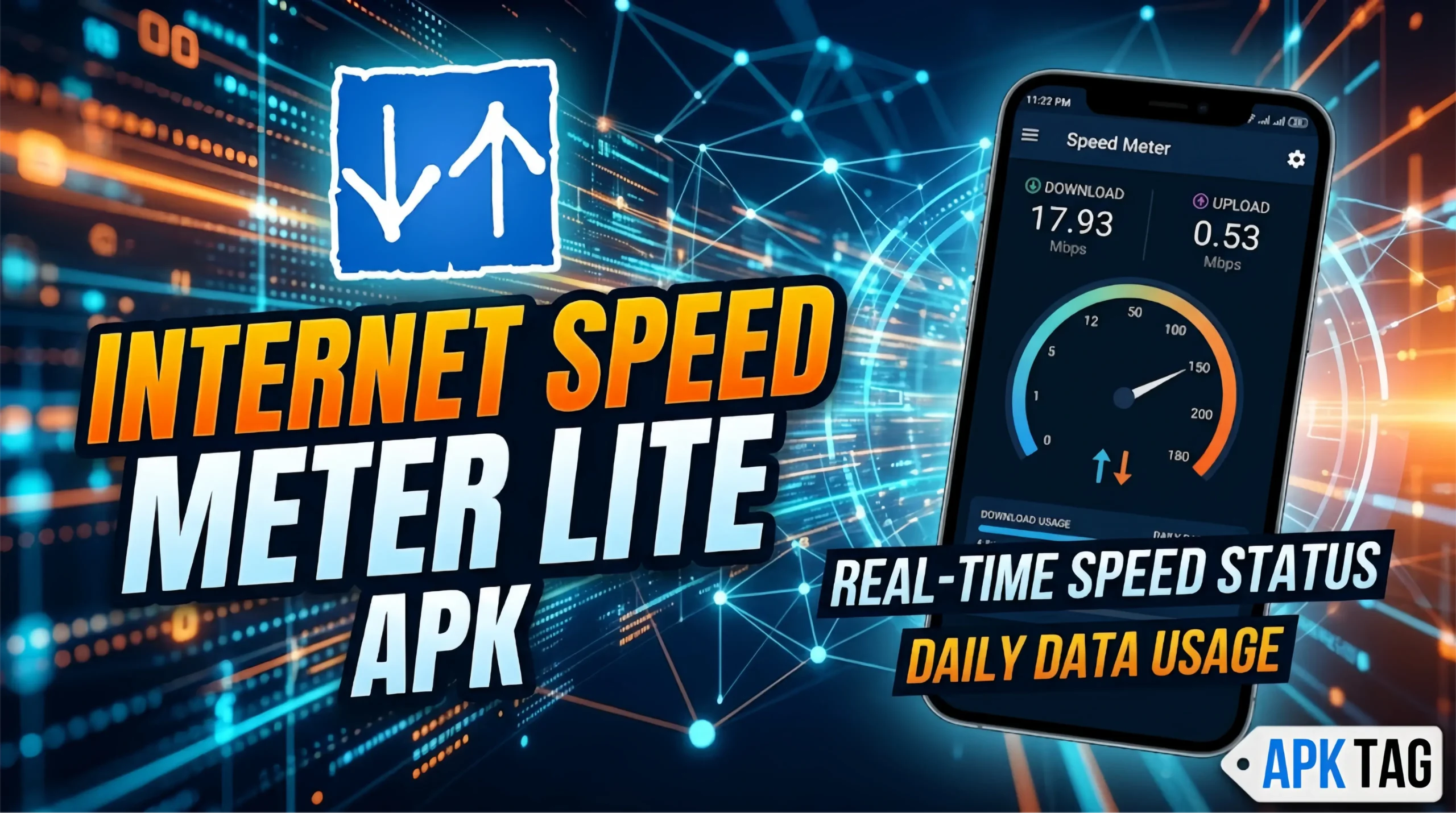
Internet Speed Meter Lite APK
Most people only check their internet speed when something feels slow. By then, data is already wasted and frustration has already set in. Internet Speed Meter Lite takes a different approach. It shows your connection speed continuously, directly on your screen, so you know exactly what your network is doing at every moment.
What Is Internet Speed Meter Lite?
Internet Speed Meter Lite is an Android application that displays your real-time internet speed in your phone’s status bar or notification panel. Developed by Internet Speed Meter team, the app runs quietly in the background and shows live upload and download speeds without requiring you to open anything.
Unlike traditional speed test apps that measure your connection at a single point in time, Internet Speed Meter Lite monitors your connection continuously. You see exactly how fast data moves to and from your device throughout the day, across every app you use.
The app is free to download with optional features available through upgrade. It has accumulated millions of downloads on the Google Play Store, making it one of the most widely used network monitoring tools for Android.
What Is the Internet Speed Meter Lite APK?
APK stands for Android Package Kit. It is the file format Android uses to install applications. The Play Store delivers APKs automatically during installation. Users search specifically for the Internet Speed Meter Lite APK for several reasons:
- Their device lacks Google Play Store access
- They want a specific older version of the app
- They use a Huawei device with AppGallery
- They want to install the app on a custom Android build
Here is what matters before you download from any unofficial source. Internet Speed Meter Lite runs continuously in the background and holds network monitoring permissions on your device. A modified APK from a third-party site exploits these permissions to track your network activity, harvest data usage patterns, and monitor which apps you use and when. This information has real commercial and privacy value to bad actors.
Download Internet Speed Meter Lite only from the Google Play Store or the official developer’s verified channels. Third-party APK sites carry risks that outweigh any perceived convenience.
Key Features of Internet Speed Meter Lite
The app delivers a focused set of tools for network monitoring. Here is what each feature does.
Real-Time Speed Display in Status Bar
The app’s primary function. It shows your current download and upload speed directly in your phone’s status bar at the top of the screen. The speed updates every second. You see live numbers without opening any app or running any test.
This feature helps you identify immediately when your connection drops, slows down, or recovers. You notice a problem the moment it happens rather than discovering it minutes later when a video refuses to load.
Notification Panel Speed Display
Beyond the status bar, the app shows a persistent notification in your notification drawer. Pulling down the notification panel reveals more detailed speed information including current speed, session data usage, and connection type. The notification stays active while the app runs in the background.
Daily and Monthly Data Usage Tracking
Internet Speed Meter Lite tracks how much data you consume daily and monthly. The app breaks this down by mobile data and Wi-Fi separately. This helps you monitor your consumption against your mobile data plan limit and avoid overage charges.
The daily breakdown shows your usage for each of the past several days. Reviewing this history identifies days with unusually high consumption, pointing to background app activity or data-intensive usage patterns you may not have noticed.
App-Wise Data Usage
The app shows which applications consume the most data on your device. You see a ranked list of apps sorted by data usage. This identifies data-heavy apps running in the background without your active use. Social media apps, streaming services, and system updates are frequent culprits for unexpected data consumption.
Knowing which apps consume the most data helps you manage your plan intelligently. You set data restrictions on high-consuming apps through your phone settings after identifying them through Internet Speed Meter Lite.
Connection Type Indicator
The app displays your current connection type alongside your speed. You see whether you are connected to Wi-Fi, 4G, 3G, or 2G at a glance. This context helps you interpret your speed numbers correctly. A speed of 2 Mbps on Wi-Fi signals a problem. The same speed on a 2G connection is expected.
Speed Graph
Some versions of the app include a visual speed graph showing how your connection speed has changed over the past few minutes. Peaks and troughs on this graph reveal when your connection experiences bursts of activity or drops in performance.
How to Download and Install Internet Speed Meter Lite
For Android via the Google Play Store:
- Open the Google Play Store on your device
- Search for “Internet Speed Meter Lite”
- Select the app from the official developer
- Check the download count and review history to confirm authenticity
- Tap Install
For Huawei devices:
- Open Huawei AppGallery
- Search for “Internet Speed Meter Lite”
- Install from the official listing
After installation, the app requests permission to access network state and run as a background service. Grant these permissions. Without them, the app cannot monitor your connection or display speed in the status bar.
Setting Up the App for Best Results
First-time setup takes under two minutes. Open the app after installation and review the settings menu. Key settings to configure immediately include the following.
Speed unit selection: Choose between Kbps, Mbps, or KB/s depending on your preference. Mbps aligns with how most people discuss internet speeds. KB/s shows more granular numbers for slower connections.
Display position: Some versions let you adjust where the speed indicator appears in your status bar. Move it to a position that does not overlap with other status bar icons like your battery or signal indicator.
Update interval: Set how frequently the speed display refreshes. A one-second refresh gives the most real-time information. A longer interval reduces battery impact slightly.
Data reset date: Set your monthly data reset date to match your mobile plan’s billing cycle. This ensures your monthly usage tracker resets on the correct date and gives you accurate consumption data for your plan period.
Notification settings: Decide whether you want the notification panel display active at all times or only when the app runs in the foreground. Keeping it active gives you constant access to usage data without opening the app.
Common Issues and Solutions
App not showing speed in status bar: Check that the app has permission to draw over other apps. Go to your phone settings, find Internet Speed Meter Lite in the app list, and verify overlay permissions are enabled.
Speed display disappears after phone restart: Enable the auto-start option in the app settings. Some Android devices aggressively manage background apps and kill services after a restart. Enabling auto-start ensures the app launches with your phone.
Data usage numbers seem inaccurate: Reset your usage data from inside the app and set your billing cycle reset date correctly. Discrepancies sometimes occur if the app was installed partway through a billing cycle.
Battery drain concerns: Internet Speed Meter Lite runs continuously in the background, which uses some battery. The impact is minimal on most modern devices. If battery drain is a concern, set a longer display update interval in the app settings.
App crashes on launch: Clear the app cache from your phone settings. Go to Settings, find Internet Speed Meter Lite, tap Storage, and select Clear Cache. Reopen the app.
Conclusion
Internet Speed Meter Lite gives you continuous, real-time visibility into your internet connection directly from your status bar. It tracks daily and monthly data usage, identifies data-hungry apps, and shows you exactly what your connection does at every moment. Download it from the Google Play Store. Configure your billing cycle date immediately after installation. Use the app-wise tracker to find and restrict background data consumers. Skip every third-party APK site without exception. The Play Store version is free, verified, and safe.