App Lock : Lock Apps, Pattern APK
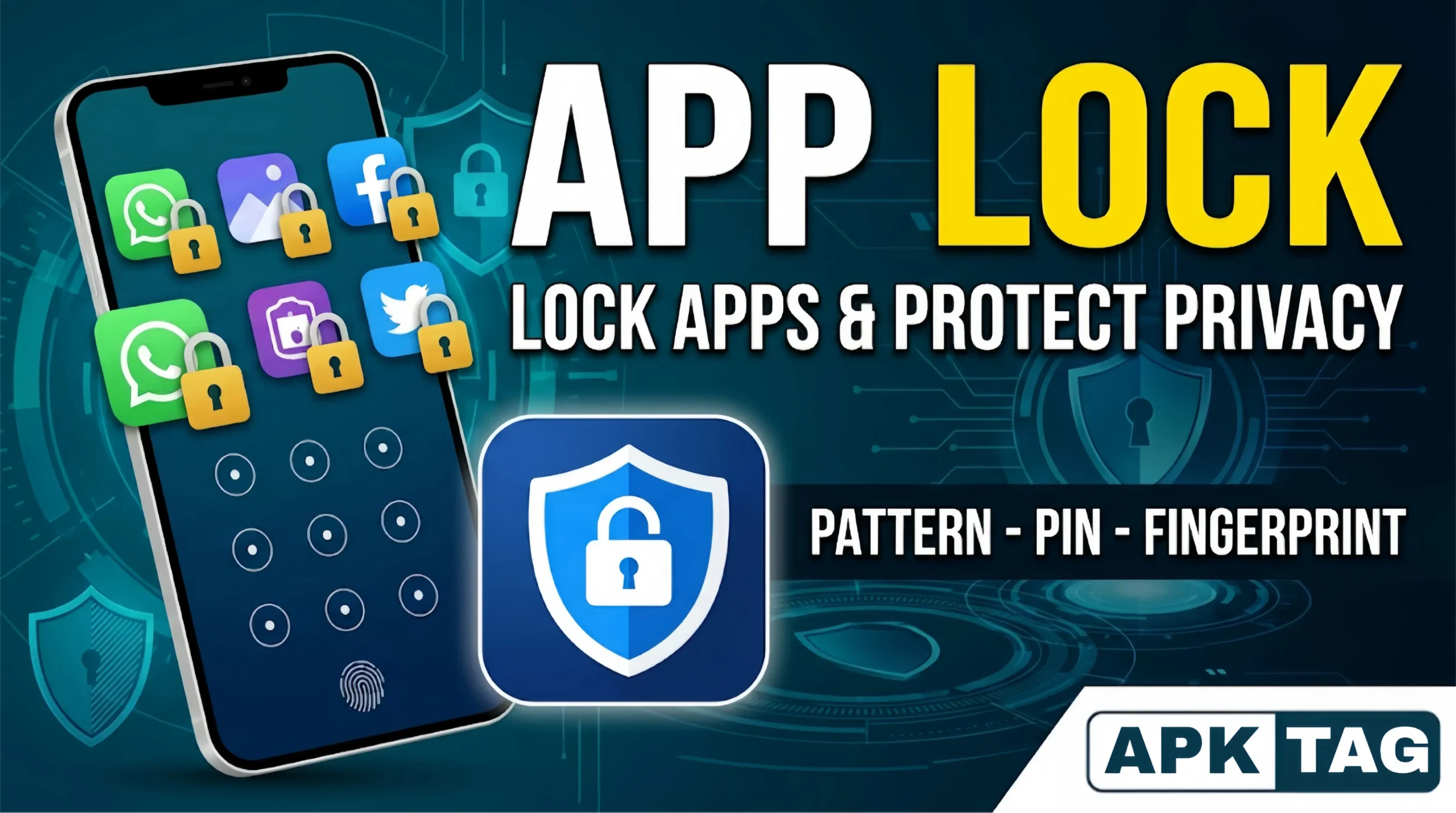
Your phone’s screen lock protects everything on your device from someone who picks it up cold. But once someone gets past your screen lock, every app opens instantly. Banking apps, private messages, photos, and social media all become immediately accessible. App Lock APK adds a second layer of protection. Individual apps require their own PIN, pattern, or fingerprint before opening.
What Is App Lock APK?
App Lock APK is an Android application that places an individual lock screen in front of specific apps you choose. When someone attempts to open a locked app, they hit a PIN, pattern, password, or fingerprint prompt before the app launches.
How App Lock Works on Android
App Lock apps use Android’s Accessibility Service or Usage Stats API to monitor which app is currently in the foreground. When the monitored app moves to the foreground, the App Lock service immediately displays its lock screen overlay on top of the app interface.
The lock screen overlay requires correct credentials before dismissing. Without them, the underlying app remains inaccessible. The user sees only the lock prompt regardless of what the app displays behind it.
On Android 5 and above, the Usage Stats API provides reliable app activity monitoring without requiring root access. The app registers for usage event callbacks and triggers the lock overlay the moment a protected app becomes active.
Some App Lock apps use Accessibility Services instead of or alongside the Usage Stats API. Accessibility Services provide faster detection on some devices, reducing the brief window between app launch and lock screen appearance.
Key Features
1. Multiple Lock Methods
Quality App Lock apps support several authentication methods:
- PIN: A numeric code between 4 and 6 digits; fast entry and widely understood
- Pattern: A drawn shape across a dot grid; visual and intuitive
- Password: Alphanumeric combination; strongest protection but slower entry
- Fingerprint: Biometric unlock using your phone’s fingerprint sensor; fastest and convenient
- Face unlock: Some apps support face recognition on compatible devices
You choose different methods for different apps based on your security needs and convenience preferences.
2. Selective App Locking
You choose exactly which apps get locked. Lock your banking app and WhatsApp. Leave your music and camera apps unlocked. The App Lock app displays your full installed app list. Tap the lock icon next to any app to toggle protection on or off.
3. Intruder Detection
A popular feature across most quality App Lock apps. When someone enters the wrong PIN or pattern a set number of times, the app photographs them using your front camera and saves the photo to a private folder. Some apps email the photo to your registered address automatically. You review intruder selfies to identify who attempted unauthorized access.
4. Fake Cover Screen
Smart App Lock includes a fake crash screen feature. When someone attempts to open a locked app, it displays a fake “App not responding” or system error message instead of the obvious lock screen. The genuine owner knows to tap a specific area or enter a hidden gesture to access the real lock screen. An unauthorized user sees only an error and assumes the app is broken.
5. Time-Based Auto Lock
Set app locks to activate automatically based on time schedules. Lock your social media apps during work hours. Lock all apps except essential ones during sleep hours. The schedule activates and deactivates protection automatically without manual intervention.
6. Re-Lock Options
Control when a locked app requires credentials again after being opened. Options typically include:
- Immediately on exit: Every time you leave and return requires credentials
- After a time delay: 30 seconds, 1 minute, or 5 minutes before re-locking
- Only on screen off: Locks only when your screen turns off between uses
- Never re-lock in session: Stays unlocked for the entire phone session until restart
7. Stealth Mode
Some apps hide themselves from the app drawer after setup. Only a specific hidden gesture or dialer code reveals the App Lock settings. This prevents an unauthorized user from simply opening App Lock and disabling protection.
8. Vault for Private Files
Many App Lock apps include a hidden vault for photos, videos, and documents. Files moved into the vault disappear from your gallery and file manager. They become accessible only through the App Lock app with correct credentials. This provides file-level privacy beyond app-level protection.
9. Usage Statistics
Track how many times each app was accessed and when. Useful for parents monitoring children’s app usage patterns and for anyone who wants visibility into how specific apps get used on a shared phone.
How to Download App Lock APK
From Google Play Store
- Open Google Play Store on your Android phone
- Search “App Lock” or your specific chosen app name
- Review ratings, download count, and developer information
- Tap Install
- Open the app after installation completes
- Grant required permissions during setup
- Follow the initial configuration wizard
From Third-Party APK Sources
For versions not available in your region or with premium features unlocked:
- Go to Settings on your Android phone
- Tap Security or Privacy
- Enable “Install from Unknown Sources”
- Search for your chosen app on a trusted APK site such as APKPure or APKMirror
- Check version number, upload date, file size, and user reviews
- Download the APK file
- Scan with antivirus software before installing
- Open the file from your downloads folder
- Tap Install
- Open the app and complete setup
How to Set Up App Lock: Step by Step
This setup uses AppLock by DoMobile as the example.
Step 1: Grant Required Permissions
Open AppLock after installation. The setup wizard requests permissions sequentially:
- Usage Access: Required to detect when a protected app moves to the foreground; go to Settings, Apps, Special App Access, Usage Access, and enable AppLock
- Draw Over Other Apps: Required to display the lock screen overlay on top of other apps
- Device Admin: Optional but recommended to prevent unauthorized AppLock uninstallation
- Fingerprint: Required only if you enable fingerprint unlock
Grant all permissions the setup requests. Without Usage Access and Draw Over Other Apps, the core locking function does not work.
Step 2: Set Your Lock Credentials
Choose your primary lock method during initial setup. Set a PIN between 4 and 6 digits, draw a pattern across the dot grid, or enable fingerprint if your phone supports it. Set a backup PIN even if you use fingerprint as your primary method. The backup activates when fingerprint recognition fails or after phone restart.
Step 3: Select Apps to Lock
Navigate to the Protected tab. Your complete installed app list appears. Tap the lock icon next to each app you want to protect. The icon changes to locked state. Start with your most sensitive apps: banking, payments, gallery, WhatsApp, email, and Settings.
Step 4: Configure Re-Lock Timing
Go to Settings inside AppLock. Find Re-lock or Auto Re-lock. Set your preferred re-lock behavior. For banking apps, set immediate re-lock on exit. For social media apps you use frequently throughout the day, a 1-minute delay reduces credential entry friction while maintaining protection.
Step 5: Enable Intruder Selfie
Navigate to Advanced Settings or Security Settings inside the app. Enable Intruder Selfie. Set the number of failed attempts before the camera triggers: 3 attempts is the standard setting. Enable email notification if you want automatic alerts sent to your registered address.
Step 6: Set Up the Photo Vault
If the app includes a vault feature, set it up now before moving any files into it. The vault creates a separate encrypted storage area. Move sensitive photos from your gallery into the vault by opening the vault section, selecting Add Files, and choosing photos from your gallery. They disappear from your standard gallery immediately.
Step 7: Whitelist From Battery Optimization
Go to phone Settings. Tap Battery. Tap Battery Optimization. Find AppLock. Select “Don’t Optimize.” This prevents Android from killing the App Lock background service. Without this step, the lock screen stops appearing after your phone’s battery optimizer suspends the app’s background process.
Step 8: Test Every Locked App
Open each app you locked from your home screen. Confirm the lock prompt appears immediately before the app content loads. Test with an incorrect PIN or pattern to confirm rejection works. Test with correct credentials to confirm normal access.
Conclusion
Download AppLock by DoMobile or Norton App Lock from Google Play Store. Grant Usage Access and Draw Over Other Apps permissions during setup. Set a PIN or fingerprint as your lock method. Enable Device Admin protection. Lock your banking apps, gallery, WhatsApp, and Settings immediately. Whitelist AppLock from battery optimization in your phone settings.
Test every locked app before relying on the protection. Confirm the lock screen appears reliably on each protected app. Your second security layer activates from that point forward, protecting your most sensitive apps from anyone who accesses your phone without your knowledge.