5G 4G Force LTE Mode APK
Dropped calls, slow data speeds, and inconsistent connections frustrate millions of mobile users daily. Your phone constantly switches between available network bands, sometimes landing on weaker 2G or 3G signals when stronger 4G LTE or 5G networks sit within reach. 5G 4G Force LTE Mode APK addresses this problem directly. It gives you manual control over which network band your phone connects to, locking it to faster, more stable signals.
What Is 5G 4G Force LTE Mode?
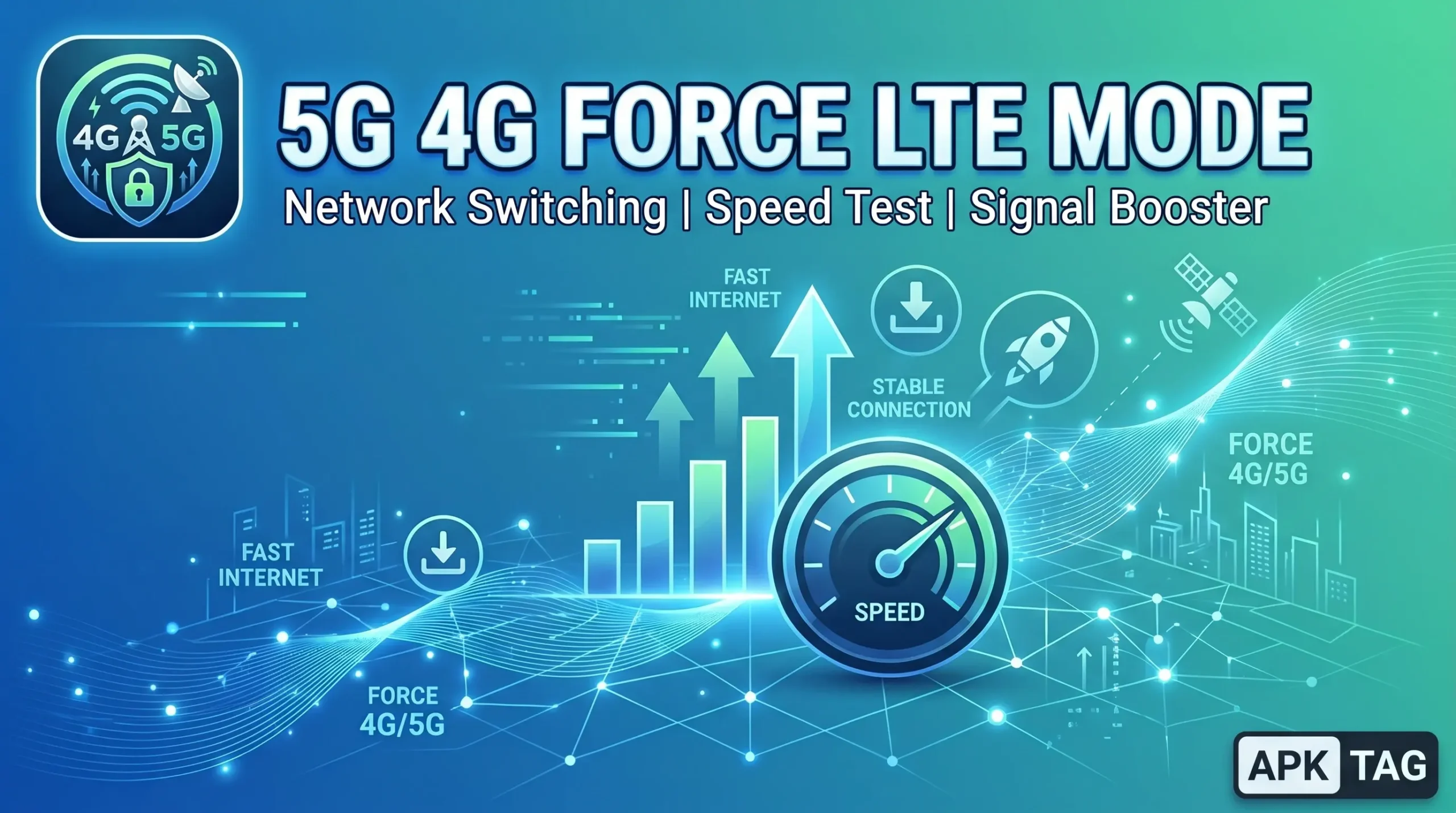
5G 4G Force LTE Mode is an Android application that provides access to network mode settings on your device, allowing you to manually select and lock your preferred cellular network band. Instead of letting your phone’s automatic network selection algorithm switch between 2G, 3G, 4G LTE, and 5G bands based on its own calculations, the app gives you direct control over which network your phone prioritizes.
The app targets users who experience inconsistent connectivity, frequent band switching that interrupts data sessions, slow speeds caused by automatic fallback to weaker networks, and connection instability in areas where multiple network bands overlap.
What Is the 5G 4G Force LTE Mode APK?
APK stands for Android Package Kit. It is the file format Android uses to install applications. The Play Store delivers APKs automatically during installation.
Here is what matters before downloading from any unofficial source. Network mode apps access your phone’s radio settings and network configuration. A modified APK from an unofficial source manipulates these settings maliciously, disrupts your connectivity, harvests device identifiers, or installs persistent malware that survives app removal. Your IMEI number, SIM details, and network configuration are sensitive data that a compromised network app accesses freely.
Download 5G 4G Force LTE Mode only from the Google Play Store or the official developer’s verified channels. Never trust APK files for network configuration apps from third-party sites regardless of how legitimate those sites appear.
Key Features of 5G 4G Force LTE Mode
The app delivers a focused set of network management tools. Here is what each feature does.
Network Mode Selection
The core feature. The app provides a clean interface for selecting your preferred network mode. Available options typically include:
- 5G only
- 5G preferred with 4G LTE fallback
- 4G LTE only
- 4G LTE preferred with 3G fallback
- 3G only
- 2G only
- Automatic network selection
Locking to 4G LTE only prevents your phone from dropping to 3G or 2G in areas where LTE coverage exists but signal strength fluctuates. This produces more consistent data speeds at the cost of coverage in areas without LTE.
LTE Band Selection
Beyond network mode selection, some versions of the app provide access to individual LTE frequency band selection. Different carriers use different frequency bands for their LTE networks. Selecting the specific band your carrier uses in your area eliminates time your phone wastes searching or connecting to bands your carrier does not operate locally.
This advanced feature requires understanding which bands your specific carrier uses in your city. Contact your carrier or check their published frequency band information before adjusting individual band settings.
Signal Strength Monitoring
The app displays real-time signal strength information beyond the basic bars shown in your status bar. Detailed readings show your signal strength in dBm (decibels relative to a milliwatt), your current connected band, network type, and carrier information.
Signal strength in dBm gives more precise information than the bar display. A reading of -70 dBm indicates an excellent signal. Between -70 and -85 dBm is good. Between -85 and -100 dBm is fair. Below -100 dBm is poor. This numerical display helps you understand exactly how strong your connection is and whether locking to a specific band improves or worsens your signal quality.
Network Information Display
The app shows detailed information about your current network connection including:
- Current network operator name
- Network type currently connected
- Connected frequency band
- Cell ID of the tower you connect to
- Signal strength and quality metrics
- Roaming status
This information helps diagnose connectivity problems by showing exactly what network your phone connects to at any moment.
Quick Toggle Widget
The app provides a home screen widget for rapid network mode switching without opening the full app. Place the widget on your home screen and switch between your saved network mode preferences with a single tap. This is useful when moving between areas with different coverage quality throughout your day.
Automatic Scheduling
Some versions include scheduling features that switch network modes automatically at set times. Schedule 4G LTE lock during work hours for consistent data performance and switch to automatic mode during evenings when consistent speed matters less. Automation removes the need to manually adjust settings throughout the day.
How to Download and Install 5G 4G Force LTE Mode
For Android via Google Play Store:
- Open the Google Play Store on your device
- Search for “5G 4G Force LTE Mode”
- Review results and compare developer names, download counts, and ratings
- Select an app with substantial download history and positive recent reviews
- Verify the developer name before tapping Install
- Tap Install
For Huawei devices:
- Open Huawei AppGallery
- Search for “Force LTE Mode”
- Install from a verified listing
After installation, the app requests phone state and network access permissions. These are necessary for reading network information and accessing mode settings. Review each permission request and deny anything beyond what the core network management function requires.
When to Lock Your Network Band
Network mode locking delivers benefits in specific situations and creates problems in others. Understanding when to use it guides smarter configuration decisions.
Lock to LTE in urban environments where 4G LTE coverage is consistent and dense. Cities with strong LTE infrastructure benefit most from band locking. Your speeds stabilize and call quality improves when the phone stops cycling between bands.
Lock to LTE during important video calls or conferences. Automatic band switching during an active video call causes brief disconnections that interrupt audio and video. Locking to LTE before an important call prevents mid-call band switching.
Use automatic mode during travel. Driving through areas with mixed coverage requires automatic mode to maintain connectivity. Locked LTE mode drops your connection whenever the car passes through an area without LTE coverage.
Lock to 5G in areas with confirmed 5G coverage. If your carrier has deployed 5G in your city and your phone supports it, locking to 5G in coverage areas delivers maximum speeds. Switch back to automatic or LTE preferred outside 5G coverage zones.
Return to automatic mode in low-signal areas. Rural areas, basements, and buildings with poor penetration benefit from automatic mode that accepts whatever signal is available rather than maintaining a locked preference that may find no matching signal at all.
Common Issues and Solutions
App shows no network options: Some Android manufacturers restrict third-party access to network mode settings. Samsung, OnePlus, and stock Android devices generally provide full access. Heavily customized Android versions from some manufacturers block this access. If no options appear, your device manufacturer may have restricted the telephony API the app relies on.
Locking to LTE cuts all connectivity: You moved into an area without LTE coverage while locked to LTE only. Open the app and switch to automatic mode or LTE preferred with fallback to restore connectivity. The phone reconnects to whatever network is available.
5G option not available: Your device hardware does not support 5G or your current SIM and plan do not include 5G access. Check your carrier plan and device specifications. 5G requires both a 5G-capable device and a carrier plan with 5G access.
Battery drains faster after locking: You locked to a band with weaker coverage in your area. Your radio works harder to maintain a signal on a band with insufficient coverage. Switch to automatic mode or select a band with stronger coverage in your specific location.
Settings reset after phone restart: Some Android versions reset network mode preferences during restart. The app may need to reapply settings after each boot. Enable auto-apply on startup in the app settings if this option is available.
Legal and Carrier Considerations
Adjusting your own device’s network mode settings is legal in virtually every jurisdiction. You are changing a preference setting on your own hardware and SIM connection. No laws prohibit choosing which network band your phone prioritizes.
Carrier terms of service do not typically restrict network mode selection either. Carriers want their customers using their network. Locking to their fastest available band aligns with carrier interests.
The exception involves SIM unlocking and using foreign SIMs on locked devices. If your device is carrier-locked and you attempt to use a SIM from another carrier, network mode selection does not override the carrier lock. These are separate device configurations.
Conclusion
5G 4G Force LTE Mode gives Android users direct control over network band selection, moving beyond the limited automatic network management built into most stock Android installations. Download it from the Google Play Store only.