Introduction
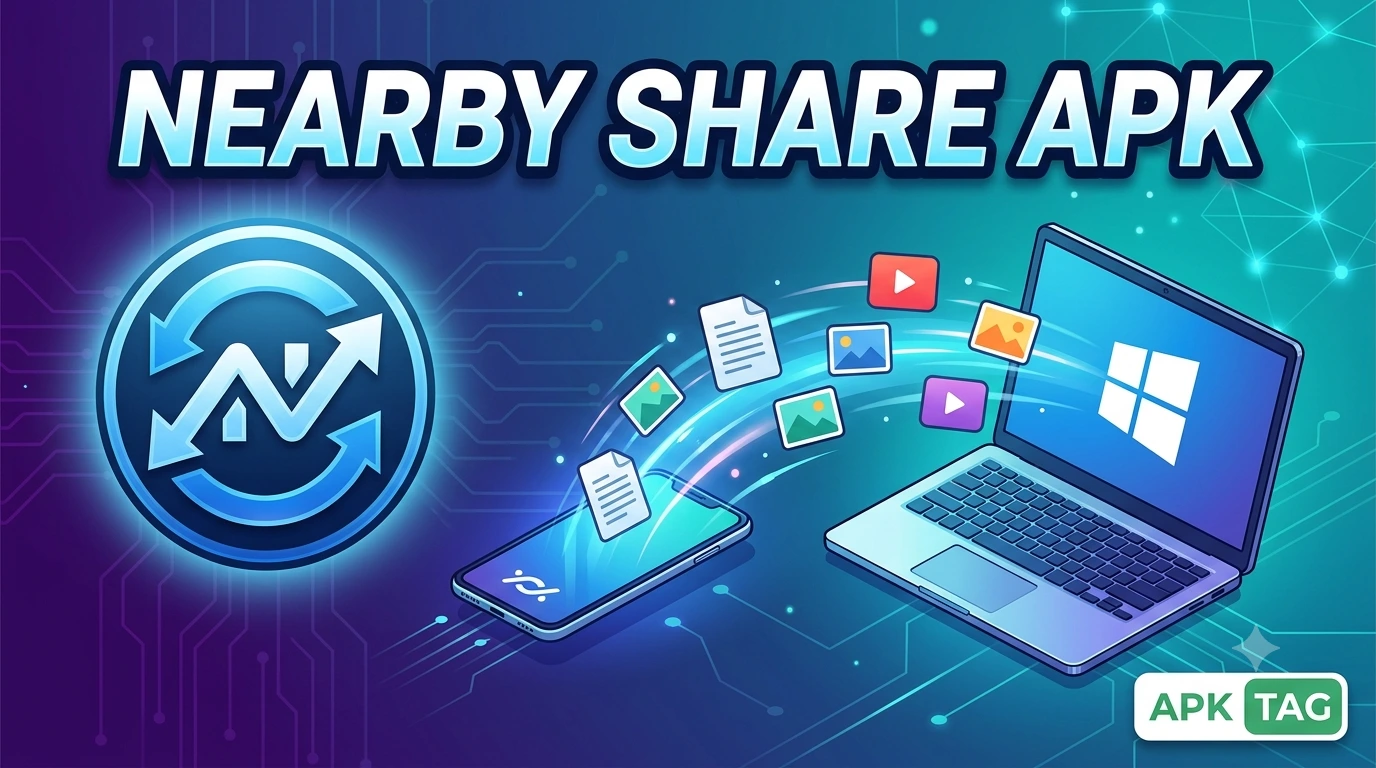
Nearby Share is Google’s file-sharing application for Android devices. The app enables fast, peer-to-peer file transfers. You send photos, videos, documents, and apps to nearby Android devices. The app uses Bluetooth and Wi-Fi Direct for transmission. You do not need an internet connection. The app is pre-installed on most Android devices. You download the APK for older devices or custom ROMs.
What is Nearby Share?
Nearby Share is Google’s answer to Apple’s AirDrop. The app transfers files between Android devices. The app works across Android 6.0 and higher. The app is available on Chromebooks and Windows PCs. The transfer speed reaches up to 480 Mbps. The app encrypts files during transmission. You control your device visibility. You share with contacts or everyone nearby.
Key Statistics
The app is pre-installed on over 2 billion devices. The APK size is approximately 10 MB. The app requires Android 6.0 or higher. The developer is Google LLC.
Core Features
Nearby Share offers a simple and secure sharing experience.
Peer-to-Peer Transfer
You send files directly to another device. No cloud or internet connection is required. The devices connect via Bluetooth and Wi-Fi Direct. The transfer is fast and local.
Multiple File Types
You send photos, videos, and audio files. You send documents like PDFs and Word files. You send APK files and applications. You send entire folders.
Contact-Based Sharing
You share with your device contacts. The recipient must have their number saved in your contacts. You select the recipient by name. The recipient’s device must be unlocked.
Visibility Control
You set your device visibility. Options include “All contacts,” “Some contacts,” and “Hidden.” “Hidden” prevents others from seeing your device. “All contacts” allows any saved contact to see you.
Offline Transfer
You do not need an active internet connection. Bluetooth creates a direct link. Wi-Fi Direct handles the data transfer. The transfer works anywhere, even without cellular service.
Encryption
All files are encrypted during transfer. The encryption meets security standards. No third party can intercept or read the files.
Cross-Platform Support
You share between Android and Chromebook devices. Windows PC support is also available. Apple iOS devices do not support Nearby Share.
How to Download the Nearby Share APK
Most devices already have Nearby Share pre-installed. You only need the APK for unsupported devices or older Android versions.
Step 1: Check if Pre-Installed
Open your device settings. Search for “Nearby Share.” If the option appears, you do not need to install. If not, proceed with the APK download.
Step 2: Enable Unknown Sources
Open your Android settings. Navigate to Security or Privacy. Find “Install unknown apps.” Enable the toggle for your browser or file manager.
Step 3: Find a Trusted Source
Search for “Nearby Share APK” on your browser. Select a reputable APK provider. Use sites like APKMirror or APKPure. Avoid unknown or suspicious sites. Check user ratings for the site.
Step 4: Download the APK File
Click the download button for the latest version. The file size is approximately 10 MB. Wait for the download to complete. Confirm the download if your browser warns you.
Step 5: Install the APK
Open your Downloads folder. Tap the Nearby Share APK file. Tap “Install” on the prompt. The installation takes a few seconds. Tap “Open” to launch the app.
Step 6: Grant Permissions
The app requests Bluetooth, Wi-Fi, and location permissions. Grant all permissions for full functionality. The app also requests storage access for file transfers.
Differences Between Pre-Installed and APK Versions
The pre-installed version is part of Google Play Services. The APK version is a standalone installation.
Pre-Installed Version
The pre-installed version updates automatically via Play Services. The app is integrated with the system. The app has no additional APK file. The app is pre-configured for your device.
APK Version
The APK version is for devices without Google Play Services. Some custom ROMs lack the pre-installed version. The APK may not update automatically. The APK may have compatibility issues. The APK may not support all Android versions.
Modified APKs
Some APKs claim to add extra features. These modded versions are not authorized by Google. They may contain malware or tracking code. They may violate Google’s terms of service. Use them at your own risk.
Safety Considerations
Installing APKs carries security risks.
Malware Risk
Unofficial APKs may contain malware. The malware can steal your data. It can display unwanted ads. It can install other harmful apps. Only download from trusted sources like APKMirror. Scan the APK with antivirus software before installation.
Privacy Concerns
Modded APKs may collect personal information. They may access your contacts and files. They may send your data to third parties. Read the permissions carefully. Avoid APKs that request unnecessary permissions.
Legal Issues
Modded APKs violate Google’s terms of service. Using them is not illegal but is not supported. Your device may become unstable. Your data may be at risk.
Update Issues
APK versions do not update automatically. You must manually download new versions. This leaves you with outdated software. Outdated software has security vulnerabilities.
Using Nearby Share
Follow these steps to send and receive files.
Sending Files
Step 1: Open the File
Navigate to the file you want to share. This could be a photo in your gallery, a PDF in your downloads, or an app in your app list.
Step 2: Tap the Share Icon
Tap the share button (usually a three-dot or chain-link icon). Select “Nearby Share” from the sharing options.
Step 3: Turn on Visibility
Ensure the recipient’s device has Nearby Share enabled. The recipient must have their screen unlocked. The recipient must have visibility set to “All contacts” or “Some contacts.”
Step 4: Select the Recipient
Your device scans for nearby devices. The recipient’s device appears in the list. Tap the recipient’s name.
Step 5: Confirm Transfer
The recipient receives a notification. They tap “Accept” to start the transfer. The file transfers via Wi-Fi Direct. The transfer speed is high.
Receiving Files
Step 1: Enable Nearby Share
Open your device settings. Search for “Nearby Share.” Enable the feature. Set your visibility to “All contacts” or “Some contacts.”
Step 2: Keep Screen Unlocked
Your device must be unlocked to receive files. The sender scans for your device. Your device appears in their list.
Step 3: Accept the File
You receive a notification. The notification shows the sender’s name. Tap “Accept” to start the transfer. Tap “Decline” to reject.
Step 4: Save the File
The file saves to your Downloads folder. You can also open it directly from the notification.
Troubleshooting
Device Not Found
Ensure both devices have Nearby Share enabled. Ensure visibility is set to “All contacts” or “Some contacts.” Keep both devices unlocked and close together (within 1 meter). Turn Bluetooth and Wi-Fi on.
Transfer Fails
Restart both devices. Check for available storage space. Ensure files are not corrupted. Try a smaller file. Update the app or Android system.
Slow Transfer
Ensure you are using Wi-Fi Direct. Avoid interference from other devices. Move closer to the sender. Close other apps using Wi-Fi.
APK Installs but Crashes
Your Android version may not be supported. Check the APK requirements. Uninstall and reinstall the APK. Restart your device.
Alternatives to Nearby Share
Several alternatives provide similar file-sharing functionality.
ShareMe (Xiaomi)
ShareMe is Xiaomi’s file transfer app. It works across Android devices. It uses Wi-Fi Direct. The speed is up to 20 MB/s. The app is free and ad-supported.
Send Anywhere
Send Anywhere uses a six-digit key for transfers. It works across Android, iOS, and PC. It requires an internet connection. The app offers end-to-end encryption.
Feem
Feem creates a local Wi-Fi hotspot. You transfer files without internet. It works across Android, iOS, Windows, and Linux. The app is free for basic features.
Files by Google
Files by Google includes a “Share” feature. This feature is similar to Nearby Share. It works only on Android. It uses Wi-Fi Direct. The app also clears junk files.
Comparison
Nearby Share is best for Android-to-Android transfers. ShareMe is faster for Xiaomi devices. Send Anywhere works across all platforms. Feem is best for PC transfers. Nearby Share is Google’s official solution.
Pros and Cons
Pros
The app is fast and reliable. The app works offline. The app is secure with encryption. The app is pre-installed on most devices. The app is easy to use.
Cons
The app only works on Android and Chromebook. The APK version lacks automatic updates. The app does not work on iOS. The APK may contain malware. The app requires Bluetooth and location permissions.
Conclusion
Nearby Share is a reliable file-sharing solution for Android users. The pre-installed version is the safest option. You only need the APK for older or unsupported devices. You should only download APKs from trusted sources. You should scan files with antivirus software. The app is easy to use and works offline. You share photos, videos, and documents instantly. You control your visibility for privacy. You encrypt files for security. Use Nearby Share for fast, local transfers. Protect your device with trusted sources. Enjoy simple and secure file sharing on your Android device.