Introduction
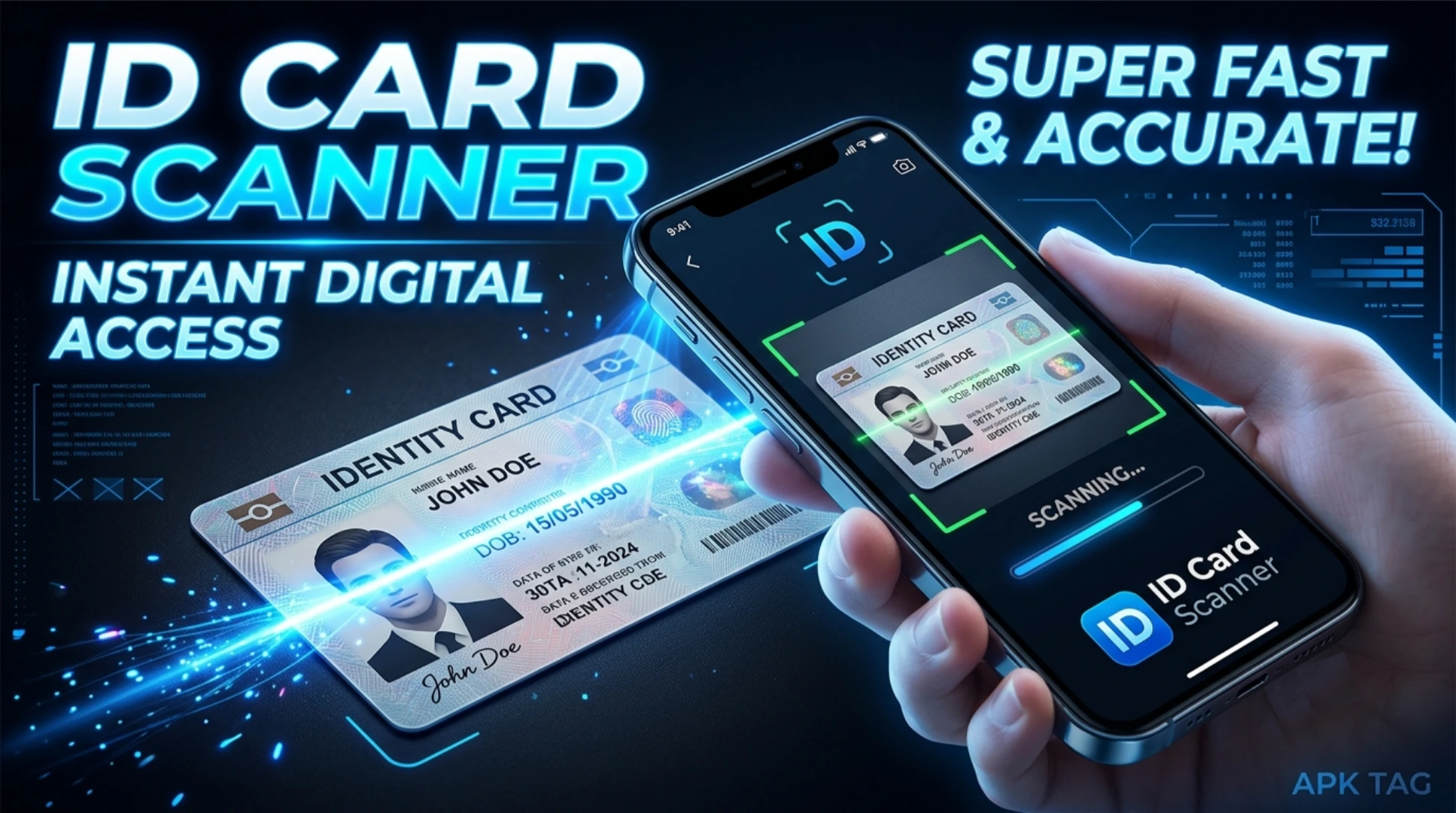
An ID card scanner app digitizes physical identification documents. It captures identity cards, passports, and driver licenses using your phone camera. The app extracts text and data through optical character recognition (OCR). You store digital copies. You share them electronically. You verify identities quickly.
What is an ID Card Scanner App?
An ID card scanner is an OCR-based application. It uses your camera to capture an image of your ID. It identifies text fields like name, ID number, date of birth, and address. The app extracts this text and saves it as structured data. You create a digital backup of your ID. You fill forms automatically. The app works offline for text extraction. Online features include validation and verification. The app is available on the Google Play Store. App sizes range from 10 to 30 MB. Requires Android 5.0 or higher.
Core Purpose
You digitize physical ID cards. You store them securely. You extract data for forms. You share ID copies without printing. You verify ID authenticity.
Core Features
Document Scanning
The app captures an image of your ID. It uses automatic edge detection. It crops the document from the background. It applies perspective correction. The resulting image is clear and straight.
Optical Character Recognition (OCR)
The app reads text from the captured image. It identifies specific fields. Fields include full name, ID number, date of birth, and nationality. It also reads expiry date and issuing authority. The text becomes editable and searchable.
Data Extraction
The app populates data fields automatically. You export the data to other apps. You fill online forms with one tap. You save time on manual data entry.
ID Templates
The app supports multiple ID types. Options include national ID cards, passports, driver licenses, and voter IDs. Each template identifies different fields. You select the correct template for each scan.
Digital Storage
The app saves both the image and extracted text. You organize cards in folders. You add custom labels and notes. You search for cards using text fields.
Export and Share
You share the scanned image as a JPEG or PDF. You export the extracted data as a CSV or text file. You send the file via email or messaging apps. You upload to cloud storage.
Security Features
The app encrypts stored images and data. You set a PIN or pattern lock. You use fingerprint or face authentication. The app does not upload data to external servers by default.
Batch Scanning
You scan multiple ID cards in one session. The app processes each card sequentially. You save all cards to a single folder. This is useful for office or event registration.
How to Download and Install
Play Store Method (Recommended)
Open the Google Play Store. Search for “ID Card Scanner.” Select an app with high ratings and many downloads. Popular apps include “ID Card Scanner” by IDScan, “Card Scanner,” and “Scan ID.” Tap install. Wait for completion. Open the app. Grant camera and storage permissions.
APK Method
You download the APK from third-party sites. This method carries risks. Enable unknown sources in your settings. Download the APK from a trusted site like APKMirror. Tap the APK file to install. Grant permissions during installation.
Why Use the Play Store Version
The Play Store version updates automatically. The Play Store version includes Google’s security checks. The Play Store version is verified. The APK version may contain malware. The APK version may not update. Use the Play Store version for safety.
Step-by-Step Usage Instructions
Step 1: Open the App
Launch the app from your app drawer. The app requests camera and storage permissions. Grant both permissions.
Step 2: Select ID Type
Choose the type of ID you are scanning. Options include National ID, Passport, Driver License, and Others. This selects the correct template for data extraction.
Step 3: Capture the ID
Place your ID on a flat, contrasting background. Ensure good lighting without shadows. Hold your phone parallel to the ID. Tap the capture button. The app automatically detects edges. It crops and corrects the image.
Step 4: Review the Image
Check the captured image. The app shows a preview. Accept the image or retake it. The app proceeds to OCR.
Step 5: Extract Data
The app processes the image. OCR runs for 5 to 15 seconds. The app identifies text fields. It displays the extracted data on the screen.
Step 6: Verify and Edit
Review the extracted data. Correct any OCR errors. Fill in missing fields manually. Ensure all information is accurate.
Step 7: Save the Card
Tap “Save.” The app stores the image and data. The file appears in your card library. You add custom tags or notes.
Step 8: Export or Share
Open the saved card. Tap the share icon. Select export format (JPEG, PDF, or CSV). Choose the sharing method (email, messaging, or cloud).
Step 9: Set Security
Go to settings. Enable app lock. Set a PIN or pattern. Enable fingerprint authentication if available. Your data is now protected.
Legal and Privacy Considerations
Consent for Scanning
You can scan your own ID cards. You can scan IDs with the owner’s permission. Do not scan someone else’s ID without explicit consent. This is a privacy violation and may be illegal.
Data Storage
Store scanned IDs securely. Do not share ID scans with untrusted parties. ID scans contain sensitive personal information. This information can be used for identity theft.
App Permissions
The app requests camera and storage permissions. It does not need contacts or microphone. Grant only necessary permissions. Read the privacy policy before installation.
Data Transmission
Some apps upload data to cloud servers. This is for backup or validation. Check the app’s privacy policy. Disable cloud upload if you are concerned. Use apps that process data locally.
Legal Use
Scanned copies are not official documents. They are digital references. Official transactions require original physical IDs. Do not use scanned copies for legal verification.
Safety Considerations
Malware Risk with APK
Unofficial APKs may contain malware. The malware can steal your ID images. It can extract and send your personal data. It can display unwanted ads. Only download from trusted sources like APKMirror. Scan the APK with antivirus software.
Fake Apps
Some apps are fake. They look like ID scanners but are spyware. They collect your ID data. They send it to remote servers. Verify the developer before downloading. Read user reviews carefully.
Data Leakage
Free apps may sell your data. They may share your ID information with advertisers. Use reputable apps. Look for apps with clear privacy policies. Consider paying for ad-free, privacy-focused versions.
Phishing
Some apps ask for unnecessary permissions. They may use your data to impersonate you. Be cautious with unknown apps. Read the permission list. Avoid apps that request contacts or SMS access.
Encryption
Ensure the app encrypts stored data. Encryption prevents data theft if your phone is lost. Use device encryption as well.
Pros and Cons
Pros
The app digitizes physical IDs. The app saves time on data entry. The app stores IDs securely. The app includes automatic edge detection. The app exports data in multiple formats. The app is easy to use.
Cons
The APK version may contain malware. OCR errors require manual correction. The app requires camera and storage permissions. The app may upload data to servers. The app is not a legal substitute for physical IDs.
Conclusion
ID Card Scanner apps are practical tools. You digitize and store your identification documents. You extract data quickly. You fill forms automatically. Use the Play Store version for security. Review and correct OCR errors. Store your data securely.