Introduction
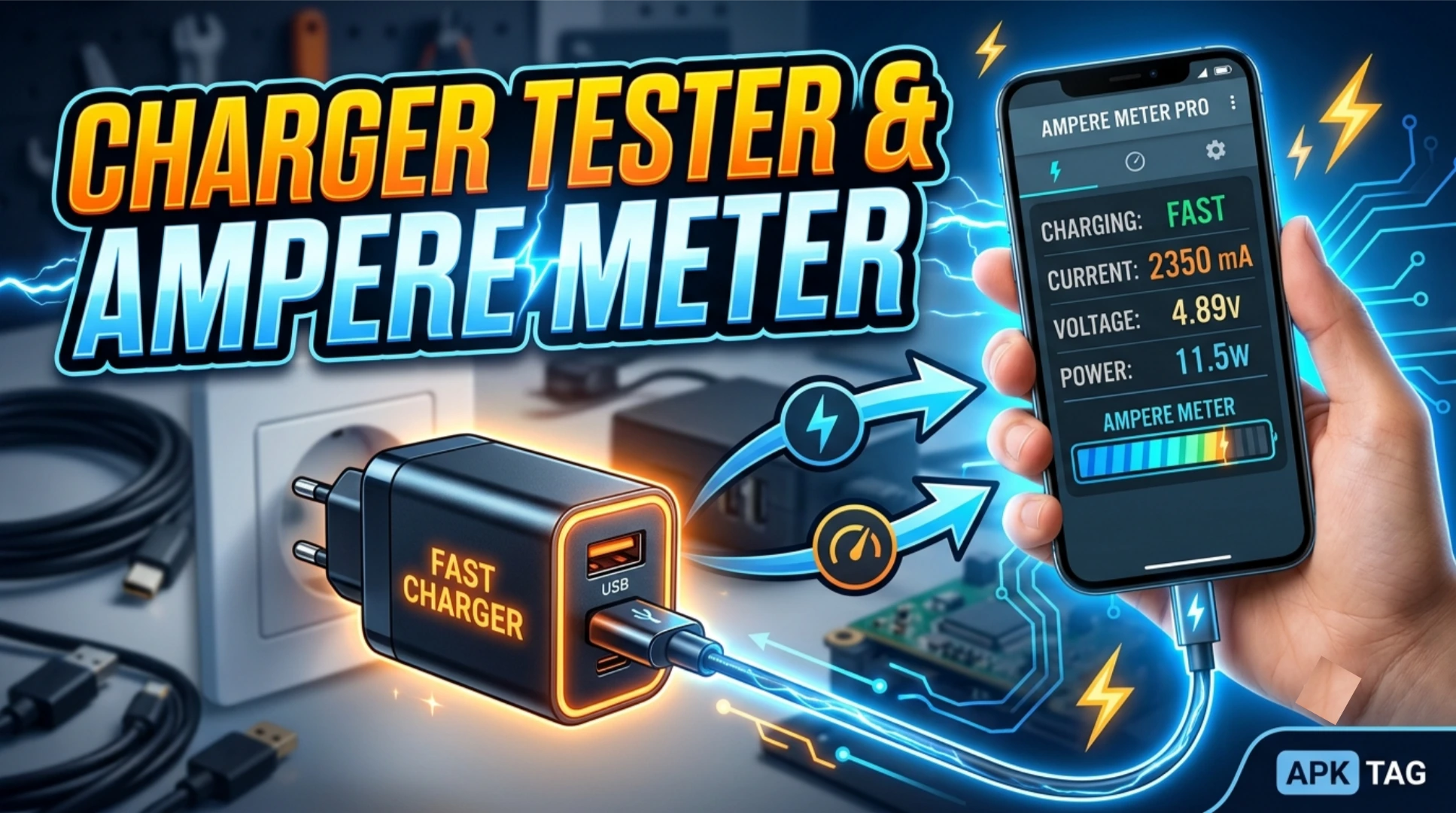
A charger tester app measures your phone’s charging current and voltage. You use the app to test different chargers and USB cables. The app identifies slow chargers and faulty cables. It displays real-time milliampere (mA) readings. It shows battery voltage and temperature. You diagnose charging issues quickly.
What is a Charger Tester App?
A charger tester app reads data from your battery management system. It measures the electrical current flowing into your battery. The app displays the current in milliamperes (mA) or amperes (A). A positive value means charging. A negative value means discharging. The app also shows voltage and temperature. You use the app to compare chargers and cables. The app works on most Android devices. The app size is 5 to 10 MB. Requires Android 5.0 or higher.
Core Purpose
You test charger output. You identify slow charging. You compare cable quality. You monitor battery health. You diagnose charging problems.
Core Features
Real-Time Current Measurement
The app shows the charging current in real time. The reading updates every 1 to 2 seconds. You see the exact milliampere value. You compare values across different chargers.
Voltage Display
The app displays the current battery voltage. Voltage indicates charge level. Higher voltage means more charge. Voltage drops during heavy use.
Battery Temperature
The app shows battery temperature in Celsius and Fahrenheit. High temperatures indicate stress. Normal charging temperature is 25 to 40 degrees Celsius. You stop charging if temperature exceeds 45 degrees.
Charging History
The app logs historical data. You view past charging sessions. You see average current and maximum current. You track changes over time.
Graphical Display
The app graphs current and voltage over time. You see charging patterns. You identify drops or spikes. You compare sessions visually.
Widget Support
You place a widget on your home screen. The widget shows current and voltage. You monitor charging without opening the app.
Notification Alerts
The app sends notifications for charging events. It alerts you when charging starts or stops. It warns you of high temperature or slow current.
Multiple Language Support
The app supports English, Arabic, Urdu, and other languages. You change the language in settings.
Top Charger Tester Apps
Ampere
Ampere is the most popular charger tester app. Over 10 million downloads. Rating 4.2 stars. The app shows current, voltage, and temperature. It has a clean interface. It supports widgets. The free version includes ads.
Charger Tester
Charger Tester focuses on current measurement. It displays maximum, average, and current readings. It includes a battery health estimate. Rating 4.1 stars.
Battery Charge Monitor
This app monitors charging status. It shows current, voltage, and temperature. It includes a history log. It provides alerts for full charge. Rating 4.0 stars.
Current Monitor
Current Monitor is lightweight and fast. It shows real-time current. It displays battery percentage. It includes a simple graph. Rating 4.3 stars.
Device Info HW
Device Info HW includes a battery section. It shows current and voltage. It also displays sensor data. The app is comprehensive. Rating 4.6 stars.
Comparison
Ampere is best for quick current testing. Charger Tester provides better history. Current Monitor is simplest. Device Info HW is the most comprehensive.
How to Download and Install
Play Store Method (Recommended)
Open the Google Play Store. Search for “Ampere” or “Charger Tester.” Select the app by Braintrapp (for Ampere). Tap install. Wait for completion. Open the app. Grant required permissions.
APK Method
You download the APK from third-party sites. This method carries risks. Enable unknown sources in your settings. Download the APK from a trusted site like APKMirror. Tap the APK file to install. Grant permissions during installation.
Why Use the Play Store Version
The Play Store version updates automatically. The Play Store version includes Google’s security checks. The Play Store version is verified. The APK version may contain malware. The APK version may not update. Use the Play Store version for safety.
Step-by-Step Usage Instructions
Step 1: Open the App
Launch Ampere or your chosen app. The app requests battery statistics permission. Grant this permission for accurate readings.
Step 2: Connect Your Charger
Plug in your charger and USB cable. Connect your phone to the charger. The app detects charging automatically. The current reading appears on the screen.
Step 3: Read the Current
The app displays the current in milliamperes (mA). A reading of 1000 mA means 1 ampere. Higher numbers mean faster charging. Wait 10 seconds for the reading to stabilize.
Step 4: Test Different Chargers
Disconnect the first charger. Connect a different charger. Note the new current reading. Compare the values. The highest number indicates the fastest charger.
Step 5: Test Different Cables
Use the same charger with different cables. Note the current reading for each cable. A cable with lower readings may be faulty or low-quality. Use the cable with the highest current.
Step 6: Check Voltage and Temperature
Look at the voltage reading. Voltage between 3.7 and 4.2 volts is normal. Check the temperature. Stop charging if temperature exceeds 45 degrees Celsius.
Step 7: View Charging History
Go to the history or log section. See past sessions. Compare current values over time. A declining trend indicates battery aging or charger degradation.
Step 8: Use the Widget
Add the widget to your home screen. Long-press on your home screen. Select “Widgets.” Choose the Ampere or Current Monitor widget. Place it on your screen. Monitor charging without opening the app.
Test Procedure for Chargers and Cables
Test a Charger
Connect the charger to your phone. Note the current reading after 10 seconds. Compare with the charger’s rated output. A 2A charger should give 1500 to 2000 mA. A 1A charger should give 800 to 1000 mA. A reading below 500 mA indicates a weak charger.
Test a USB Cable
Use a known good charger. Test the charger with cable A. Note the current. Test the same charger with cable B. Compare the readings. A good cable shows similar current. A bad cable shows 30% lower current.
Test a Power Bank
Connect your power bank. Note the current reading. Compare with the power bank’s output rating. Low readings may indicate low battery in the power bank. Recharge the power bank and test again.
Test a Car Charger
Connect your car charger. Start your vehicle. Note the current reading. Compare with home charger readings. Car chargers often provide lower current. This is normal for older cars.
Compatibility and Limitations
Device Support
Not all devices support current measurement. The app requires a battery sensor. Most phones have this sensor. Some budget devices lack it. The app will show “No reading” or 0 mA.
Reading Accuracy
The reading is an estimate. It varies based on device model. It varies based on battery level. Readings are more accurate between 20% and 80% charge. Do not expect lab-grade accuracy.
Interference
Charging current drops when the screen is on. Turn off the screen for stable readings. Close background apps. Use airplane mode for best results.
Voltage Readings
Voltage is more reliable than current. Voltage indicates charger output. Voltage should be 5V for standard chargers. Quick Charge adapters may show 9V or 12V.
Pros and Cons
Pros
The app is free and lightweight. The app is easy to use. The app provides real-time data. The app helps diagnose charging issues. The app identifies faulty cables. The app includes widgets.
Cons
The APK version may contain malware. The app requires a compatible device. The reading is not fully accurate. The app does not work on all phones. The app cannot test chargers independently (requires phone).
Conclusion
A charger tester app is a practical diagnostic tool. You test your chargers and cables. You identify the fastest charging combination. You monitor battery health. Use the Play Store version for security. Test chargers with the screen off. Compare multiple accessories. Keep your phone cool during testing.