AppLock APK – Securing Your Android Apps
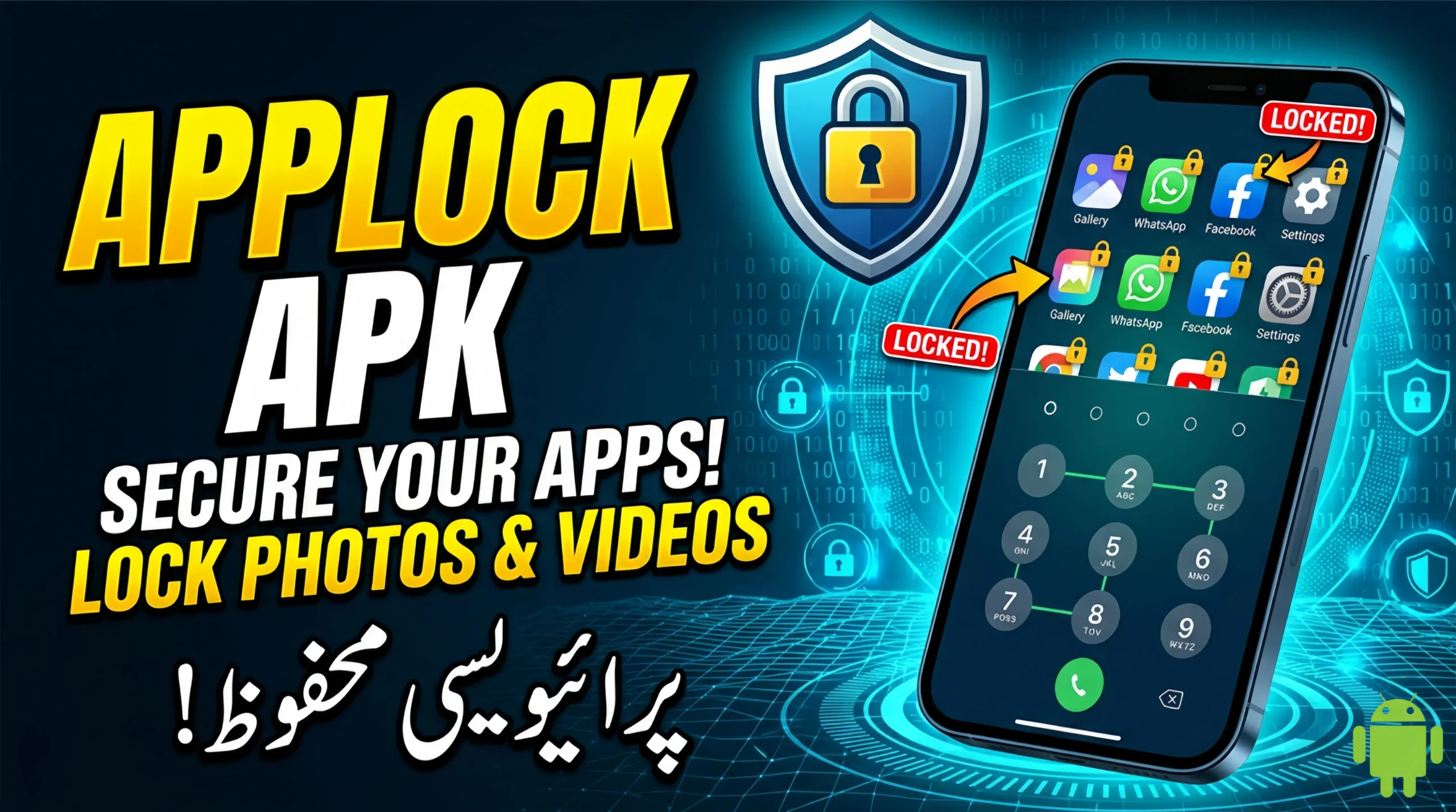
The AppLock APK a specialized application that allows you to password-protect specific apps, ensuring that even if someone unlocks your phone, they cannot access your WhatsApp, Gallery, Banking, or Social Media apps without a secondary password. This article provides a complete, in-depth guide to understanding, installing, and using an AppLock APK, along with security tips and troubleshooting for 2026.
What Is an AppLock APK?
An AppLock APK is an Android application package that adds an extra layer of security on top of your device’s native lock screen. Once installed, you can select which apps to protect. Whenever someone tries to open a locked app, the AppLock APK intercepts the launch and displays its own authentication screen requiring a PIN, pattern, password, or biometric verification (fingerprint/face) before granting access. Unlike built-in app permissions, this tool works independently of the Android system, making it compatible with virtually any device running Android 5.0 and above.
The term “APK” indicates that the app can be installed directly from a file, which is useful if the official version is unavailable on the Google Play Store in your region or if you prefer an older, feature-rich build. However, the safest approach is to download a trusted AppLock APK from the Play Store or a reputable repository. In 2026, these tools have evolved to include advanced features like intrusion detection, fake error screens, and even remote wipe capabilities.
Key Features
Not all app lockers are created equal. A high-quality AppLock APK should offer the following features:
-
Individual App Locking: Lock any app social media (WhatsApp, Facebook, Instagram), messaging (Telegram, Signal), gallery, file manager, banking apps, settings, and even the Play Store itself.
-
Multiple Lock Methods: Support for PIN, pattern, password, fingerprint, and face unlock. Some advanced versions also offer time-based locks (e.g., lock apps during certain hours).
-
Intruder Selfie: Captures a photo of anyone who enters the wrong password multiple times, along with the time and location stamp.
-
Fake Cover / Disguise Mode: Shows a fake crash message or a blank screen when someone tries to open a locked app, making them think the app is broken rather than locked.
-
Hidden AppLock Icon: The AppLock APK can disguise itself as a calculator, compass, or battery saver. You access the real settings by entering a secret code in the dialer or tapping a specific sequence.
-
App Usage History: Tracks which locked apps were attempted to be opened, by whom (via intruder selfie), and at what time.
-
Auto-Lock on Exit: Re-locks apps immediately after you close them or after a customizable delay.
-
Cloud Backup: Syncs your lock settings and passwords to your Google Drive or a secure cloud, preventing lockout after a factory reset.
How to Download and Install AppLock APK
Because the AppLock APK requires extensive permissions (overlay, usage access, notification reading), it is a common target for malicious clones. Follow these steps for a secure installation:
Step 1: Choose a Trusted Source
The most reliable AppLock APK developers include DoMobile Lab (AppLock by DoMobile), SpSoft (AppLock – Fingerprint), and KeepSafe (AppLock by KeepSafe). Download directly from the Google Play Store whenever possible. If you need to sideload an APK, use APKMirror or the developer’s official website. Avoid random third-party sites with intrusive ads.
Step 2: Enable Installation from Unknown Sources (if sideloading)
-
Go to Settings > Security > Install unknown apps (or Special app access).
-
Allow your browser or file manager to install APKs.
-
For Android 14+, grant permission per app.
Step 3: Download and Scan
Download the AppLock APK file. Before installing, scan it with a mobile antivirus (e.g., Malwarebytes, Bitdefender) to rule out malware or spyware.
Step 4: Install and Grant Permissions
Tap the APK and click “Install.” Upon first launch, the AppLock APK will request several critical permissions:
-
Usage Access: Required to detect when you open an app and trigger the lock screen. Without this, the app cannot intercept launches.
-
Overlay/Draw over other apps: Needed to display the lock screen on top of the app you are trying to open.
-
Notification Access: Optional but recommended to lock notifications from sensitive apps.
-
Storage: To save intruder selfies and backup settings.
-
Accessibility Service: Some advanced lockers use this to provide extra features like auto-lock after screen off.
Grant only the permissions you are comfortable with. For basic app locking, usage access and overlay are essential.
Step-by-Step to Using AppLock APK
Once installed, setting up your AppLock APK is straightforward. Follow this workflow:
-
Set a Master Password: Upon first opening, you will be prompted to create a PIN or pattern. This master password unlocks the AppLock settings and is also used to lock apps. Do not forget it—there is no universal backdoor.
-
Enable Fingerprint (Optional): If your device supports biometrics, the AppLock APK will offer to link your fingerprint for quick access.
-
Select Apps to Lock: The app displays a list of all installed applications. Tap the toggle next to each app you want to protect (e.g., WhatsApp, Gallery, Banking, Settings). Some versions allow you to lock system apps like “Google Play Services” (advanced users only).
-
Configure Lock Type: Choose whether the lock screen should appear immediately upon opening the app or after a delay (e.g., 5 seconds of inactivity). Also decide if the app should lock when the screen turns off.
-
Set Up Intruder Selfie: Enable this feature. The AppLock APK will silently capture a photo using the front camera after a configurable number of failed attempts (default: 2). These images are stored in a hidden folder within the app.
-
Enable Disguise Mode: Go to settings > Privacy > Disguise. Select “Fake Crash” or “Calculator Vault.” If you choose calculator, the AppLock APK icon changes to a calculator; tapping it opens a working calculator. To access the real app, you enter a secret number sequence (e.g., “1234”) and press “=”.
-
Test Your Lock: Close the AppLock APK and try opening WhatsApp or Gallery. You should see the lock screen. Enter your master password or use fingerprint. The app opens normally. If you enter the wrong password repeatedly, the intruder selfie triggers.
Advanced Features of Modern AppLock APK (2026 Edition)
The latest AppLock APK versions have introduced several sophisticated features:
-
Remote Lock via SMS: If your phone is lost, you can send a secret SMS (e.g., “LOCK#1234”) to instantly lock all protected apps and even wipe selected data.
-
Time-Based Locking: Automatically lock social media apps during work hours (9 AM to 5 PM) to improve productivity, or lock gaming apps during study hours.
-
Wi-Fi/Bluetooth Trust: Automatically disable app locking when connected to trusted networks (home Wi-Fi) or trusted devices (your smartwatch). When you leave home, locking re-engages.
-
App Locking for Work Profiles: Supports Android Work Profile, allowing separate lock settings for personal and work apps.
-
Anti-Uninstall Protection: Prevents anyone from uninstalling the AppLock APK without entering the master password. This works by activating device administrator privileges.
Benefits of Using AppLock APK
Why should you use an AppLock APK instead of relying on your phone’s built-in lock screen? Here are compelling reasons:
-
Granular Control: Lock only sensitive apps while keeping others accessible. For example, you can hand your phone to a child to play games without worrying about them accessing your bank app.
-
Protection Against Shoulder Surfing: Even if someone sees your phone’s unlock pattern, they still cannot open your private apps without the second password.
-
Privacy for Shared Devices: If you share your phone with family members or colleagues, the AppLock APK ensures that each person only accesses their own apps.
-
Intruder Deterrence: The intruder selfie feature discourages prying attempts and provides evidence if someone tries to break in.
-
Child Safety: Lock system settings, Play Store (to prevent unauthorized downloads), and adult content apps.
Potential Drawbacks and How to Mitigate Them
No security solution is perfect. Be aware of these limitations when using an AppLock APK:
-
Overlay Permission Abuse: Malicious app lockers can use overlay permission to display fake login screens that steal your credentials. Mitigation: Use only well-known, open-source, or highly rated apps. Read permissions carefully.
-
Accessibility Service Risks: Granting accessibility to an AppLock APK gives it the ability to read screen content and simulate touches. A rogue app could record your keystrokes. Mitigation: Disable accessibility for the app unless you need advanced features like auto-lock on screen off.
-
Memory and Battery Impact: Running an always-active service that monitors app launches consumes RAM and battery (typically 50-100MB RAM and 1-3% battery per day). Mitigation: Use the “Battery Optimization” exception for the AppLock to reduce background drain.
-
Lockout if You Forget Password: Unlike your phone’s lock screen, many AppLock APK tools do not have a robust recovery mechanism. Mitigation: Set up email or Google account recovery within the app. Also, periodically backup your lock settings to cloud storage.
Conclusion
The AppLock APK is an essential tool for anyone who values privacy beyond the lock screen. Whether you need to protect sensitive work emails, keep personal photos away from prying eyes, or simply prevent a child from making accidental purchases, app locking provides granular, effective security.