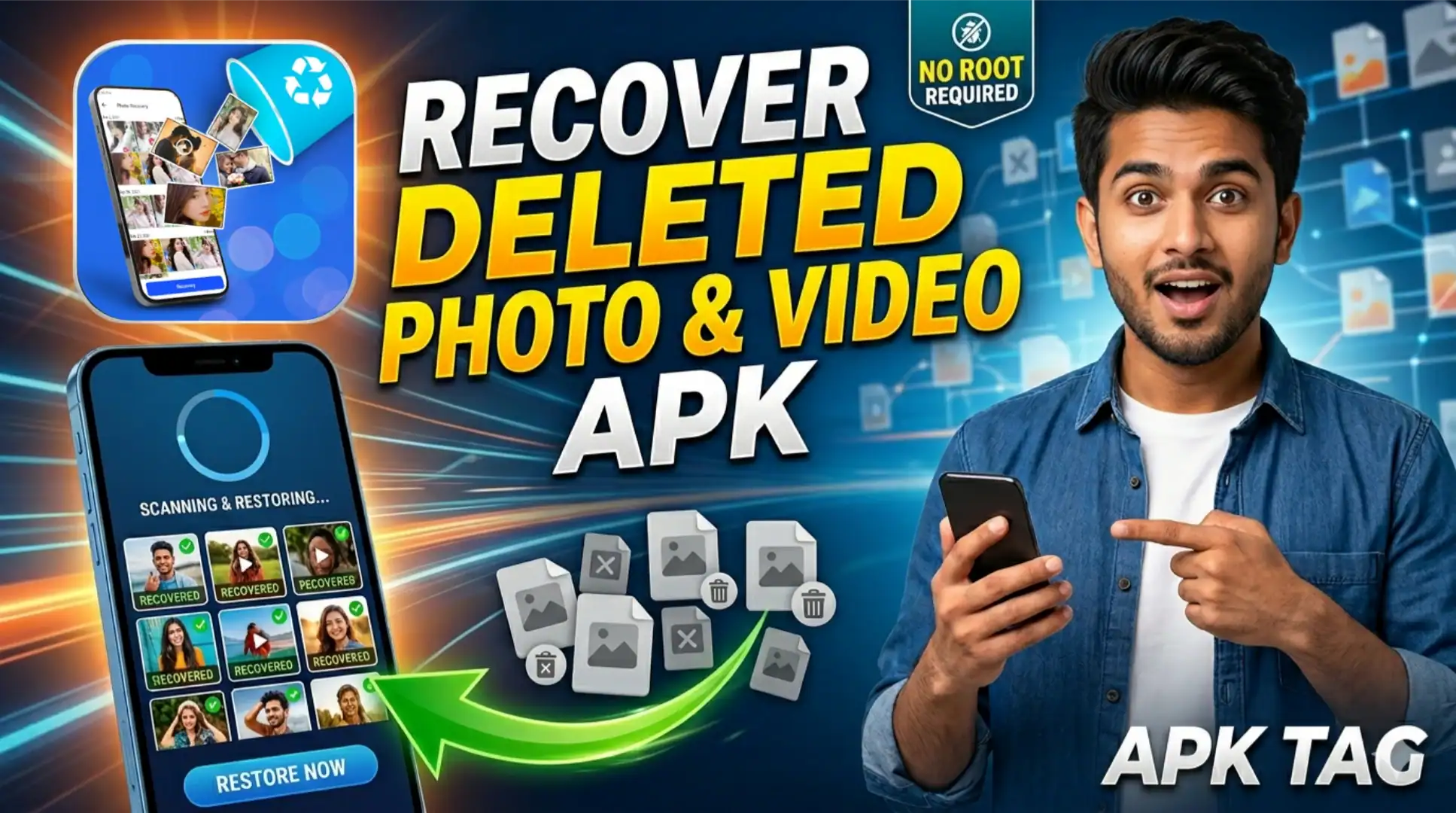
Recover Deleted Photo & Video APK
Accidentally deleting photos and videos is one of the most common and frustrating smartphone experiences. You swipe the wrong way, tap delete by mistake, or format a memory card without backing up first. Recover Deleted Photo & Video APK apps give you a real chance of getting those files back.
How Photo and Video Recovery Works on Android
Understanding the recovery process sets realistic expectations before you start.
When you delete a photo or video on Android, the file does not immediately disappear from your storage. The operating system marks the space that file occupied as available for new data. The actual file data stays in place until new data overwrites that space.
Recovery apps scan your storage at a low level, looking for file signatures that match photo and video formats: JPEG, PNG, MP4, MOV, and others. When the app finds an intact file signature in space marked as available, it recovers the file and saves it to a new location.
What Affects Recovery Success Rate
Several specific factors determine whether your deleted files come back intact.
Time Since Deletion
Recovery chances drop with every minute you use your phone after deleting files. New data continuously overwrites deleted file space. Run your recovery app as soon as possible after deletion.
Storage Type
Internal storage on modern Android phones uses eMMC or UFS flash memory. These storage types use wear-leveling algorithms that distribute write operations across the storage medium. This makes recovery harder than on traditional SD cards. External SD cards generally yield higher recovery success rates than internal storage.
Phone Activity After Deletion
Phone calls, WhatsApp messages, app updates, and background processes all write data to your storage. Put your phone in airplane mode immediately after accidental deletion to minimize new data writes before running recovery.
File Size
Smaller files like photos recover more successfully than large video files. A 4 GB video file occupies a large contiguous block of storage. Partial overwriting of any part of that block corrupts the entire video. Smaller JPEG photos occupy less space and face lower overwrite probability.
Whether the Phone Is Rooted
Root access gives recovery apps direct access to the raw storage partition. Non-rooted phones restrict app access to portions of the file system. Rooted phones consistently yield higher recovery rates than non-rooted devices.
Top Recover Deleted Photo & Video APK Apps
1. DiskDigger Photo Recovery
The most widely used photo recovery app on Android with over 10 million downloads. DiskDigger scans your phone’s internal storage and SD card for deleted image files. The free version recovers photos only. The paid pro version recovers videos, documents, and audio files.
Key features:
- Scans internal storage and SD card
- Recovers JPEG, PNG, GIF, BMP, and WebP formats
- Basic scan for non-rooted phones
- Deep scan for rooted phones with significantly higher recovery rates
- Upload recovered files directly to Google Drive or Dropbox
- Available on Google Play Store; free basic version, paid pro upgrade
2. Dumpster: Photo and Video Restore
Dumpster works differently from standard recovery apps. It functions as a recycle bin for your Android phone. Deleted photos and videos go into Dumpster first instead of being deleted permanently. You restore them from Dumpster within your chosen retention period.
This approach works only for files deleted after you install Dumpster. It does not recover files deleted before installation.
Key features:
- Automatic recycle bin for all deleted photos and videos
- Customizable retention period: 7 to 30 days
- Video and photo preview before restoration
- Cloud backup integration
- Available on Google Play Store; free with optional premium plan
3. Photo Recovery: Restore Images
A dedicated photo recovery scanner for non-rooted Android devices. It performs a thorough scan of accessible storage areas and presents recoverable photos in a grid view. You preview each photo before deciding to restore it.
Key features:
- No root required for basic recovery
- Grid preview of recoverable photos
- Filter results by image format
- Batch restoration of multiple photos simultaneously
- Available on Google Play Store; free with paid upgrade for full features
4. GT Recovery: Undelete, Recover Files
GT Recovery covers a broader range of file types beyond photos and videos. It recovers contacts, messages, call logs, and documents alongside media files. For non-rooted devices, it accesses external SD card storage. Root access unlocks internal storage scanning.
Key features:
- Recovers photos, videos, contacts, SMS, and documents
- External SD card scanning without root
- Deep scan mode for rooted devices
- Preview recovered files before restoration
- Available on Google Play Store; free with paid pro version
5. Stellar Photo Recovery
Stellar is a well-established data recovery company with professional desktop software. Their Android app brings similar technology to mobile devices. It supports a wide range of photo and video formats and delivers reliable results on external SD cards.
Key features:
- Supports 30-plus photo and video formats
- External SD card and internal storage scanning
- Preview before recovery
- Saves recovered files to phone or PC
- Available on Google Play Store; free scan, paid recovery
6. Recuva for Android (Via PC)
Recuva is a desktop recovery tool by Piriform. While not an Android app itself, connecting your Android phone to a PC and running Recuva on the mounted storage often recovers more files than mobile apps alone. This works particularly well for SD card recovery.
Key features:
- Deep scan technology from professional desktop software
- High success rate on SD cards
- Free to download and use
- Available at piriform.com
7. iMyFone D-Back for Android
A professional-grade recovery tool that operates through a PC connection. You install the desktop software on your Windows PC or Mac, connect your Android phone via USB, and run a scan. The software recovers photos, videos, WhatsApp media, and other file types.
Key features:
- Professional scan engine via PC connection
- Recovers WhatsApp photos and videos specifically
- Preview all recoverable files before restoring
- Supports 6,000-plus Android device models
- Available at imyfone.com; free scan with paid recovery
How to Use DiskDigger for Photo Recovery
This walkthrough covers the most widely used mobile recovery app.
Step 1: Stop Using Your Phone
Before downloading any recovery app, stop all phone activity. Put your phone in airplane mode. Do not take new photos, send messages, or open apps. Every action reduces recovery chances.
Step 2: Download DiskDigger
Open Google Play Store. Search for “DiskDigger Photo Recovery.” Install the app. The installation itself writes minimal data to your storage.
Step 3: Grant Permissions
Open DiskDigger after installation. Grant storage permissions when prompted. On Android 11 and above, grant All Files Access permission for broader storage scanning.
Step 4: Choose Your Scan Type
DiskDigger presents two scan options.
Basic scan: Works on non-rooted phones. Scans accessible storage areas for photo file signatures. Faster but finds fewer recoverable files.
Full scan: Requires root access. Scans the entire raw storage partition. Slower but finds significantly more recoverable files including partially overwritten ones.
Select your scan type based on whether your phone is rooted.
Step 5: Select File Types and Storage
Choose which file formats to scan for: JPEG, PNG, GIF, MP4, and others. Select your storage target: internal storage or SD card. Tap Start Basic Scan or Start Full Scan.
Step 6: Review Results
The scan takes between 2 and 20 minutes depending on your storage size and scan type. Results appear as a grid of recovered file thumbnails. Scroll through and identify the files you want to restore. Tap each file to preview it in larger size.
Step 7: Recover Your Files
Select all files you want to recover by tapping them. Tap the Recover button. Choose your save destination: your phone’s gallery, SD card, Google Drive, or Dropbox. Do not save recovered files to the same storage location you scanned. Save to a different location to avoid overwriting other recoverable files.
How to Use Dumpster as a Prevention Tool
Dumpster prevents permanent deletion rather than recovering already-deleted files. Set it up now to protect future photos and videos.
Open Google Play Store. Install Dumpster. Open the app and grant storage permissions. Set your preferred retention period under Settings: 7, 14, or 30 days. Enable automatic backup if you want cloud storage for your deleted files.
From this point forward, every photo and video you delete on your phone passes through Dumpster first. If you delete something by mistake, open Dumpster, find the file, and tap Restore. The file returns to your gallery immediately.
Recovery Tips for Maximum Success
Act Immediately
Run your recovery app within minutes of accidental deletion. The longer you wait, the lower your success rate.
Use Airplane Mode
Enable airplane mode the moment you realize files are deleted. This stops background processes from writing new data to your storage.
Recover to a Different Location
Always save recovered files to a different storage location than the one you scanned. Saving recovered files back to the same storage overwrites other potentially recoverable data.
Try Multiple Apps
Different recovery apps use different scanning algorithms. If one app finds nothing, try another. DiskDigger and Photo Recovery use different approaches and sometimes one finds files the other misses.
Use PC Software for SD Cards
For deleted files on external SD cards, connecting the card to a PC and running Recuva or Stellar desktop software often outperforms mobile recovery apps. PC software runs deeper scans with more processing power.
Root Your Phone for Better Results
Rooted devices consistently yield higher recovery rates. If you frequently store irreplaceable photos on your phone and recovery is a priority, root access gives recovery apps the storage permissions needed for thorough scanning.
Conclusion
Every minute counts after accidental deletion. Put your phone in airplane mode right now if you deleted files recently. Download DiskDigger from Google Play Store. Run a scan immediately. Review your results and restore what you find.
For future protection, install Dumpster and enable Google Photos backup today. These two steps together make accidental permanent deletion nearly impossible going forward.