Device Info – View Phone Info for Android
Device Info apps display your phone’s hardware and software specifications. You see processor details, memory usage, battery health, and sensor data. You diagnose performance issues. You verify specifications before buying a used phone. You monitor system resources. You check warranty eligibility.
What is a Device Info App?
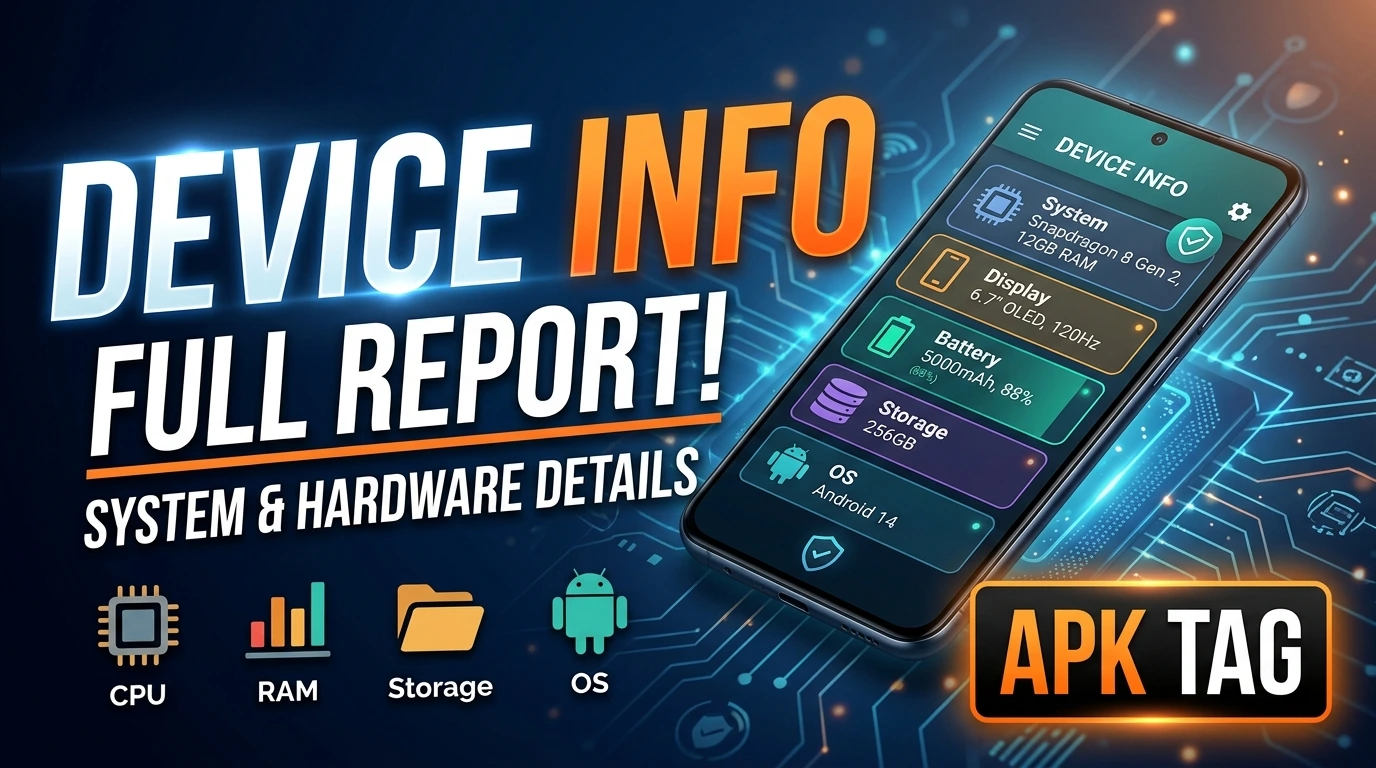
A Device Info app reads system parameters. It accesses the Android operating system’s internal data. The app shows your CPU model and clock speed. It displays RAM capacity and available storage. It lists all sensors including accelerometer, gyroscope, and proximity. It shows battery temperature, voltage, and health. It displays network information like Wi-Fi and Bluetooth addresses. The app does not collect personal data. The app works offline.
Use Cases
You check your phone’s specifications before selling. You monitor CPU temperature during gaming. You verify whether your device has a specific sensor. You identify fake devices with incorrect specifications. You troubleshoot battery drain issues. You compare devices before purchasing.
Key Features
Processor Information
The app displays the CPU architecture. It shows the processor manufacturer (Qualcomm, MediaTek, or Samsung). It lists the number of cores and clock speed. It shows the current CPU frequency and usage. It displays the GPU model and driver version.
Memory and Storage
The app shows total RAM and available RAM. It displays internal storage capacity and free space. It lists external storage (SD card) information. It shows each partition size and usage. It displays the file system type and block size.
Display Information
The app shows screen resolution and pixel density. It displays the refresh rate and aspect ratio. It lists the screen size in inches. It shows the manufacturer and model of the display panel.
Battery Information
The app displays battery capacity in mAh. It shows the current charge level and voltage. It displays battery temperature in Celsius and Fahrenheit. It shows the health status (Good, Overheat, or Dead). It displays charging status and power source.
Sensor Details
The app lists all hardware sensors. It shows each sensor’s name, vendor, and version. It displays the current reading of each sensor. It shows the maximum range and resolution. You test the accelerometer by moving the phone.
Camera Information
The app displays front and rear camera specifications. It shows megapixel count and aperture. It lists supported resolutions and video frame rates. It displays the flash type.
Network Information
The app shows Wi-Fi MAC address and IP address. It displays Bluetooth address and device name. It shows cellular network type (4G, 5G). It displays signal strength and operator name. It lists the IMEI and MEID numbers.
Operating System Details
The app displays Android version and security patch level. It shows build number and kernel version. It displays API level and bootloader version. It shows the ROM and fingerprint.
Hardware Tests
You test the display for dead pixels. You test the speaker and microphone. You test the vibration motor. You test the GPS lock. You test the fingerprint sensor. The app provides pass/fail results for each test.
Top Device Info Apps
Device Info HW
This app is the most comprehensive. Over 10 million downloads. Rating 4.6 stars. It provides detailed hardware information. It includes a benchmark feature. It has a sensor test mode. The app is free and ad-supported.
Phone Info +
This app focuses on system information. It displays both hardware and software details. It includes a battery health monitor. It shows the number of charge cycles. Rating 4.3 stars.
CPU-Z
CPU-Z is the most popular processor analyzer. It shows CPU, GPU, and memory details. It includes a benchmark function. The interface is clean and professional. Rating 4.4 stars.
AIDA64
AIDA64 is a professional system diagnostic tool. It provides detailed hardware and software information. It includes real-time sensor monitoring. It is used by technicians and developers. The free version is comprehensive.
DevCheck
DevCheck offers a modern dashboard. It displays real-time CPU and GPU usage. It includes a battery monitor. It has a network speed test. Rating 4.5 stars.
Comparison
Device Info HW is best for hardware tests. CPU-Z is best for processor analysis. AIDA64 is best for professionals. DevCheck is best for real-time monitoring. Phone Info + is best for battery health.
How to Download and Install
Play Store Method (Recommended)
Open the Google Play Store. Search for “Device Info.” Select an app with high ratings. Tap install. Wait for completion. Open the app. Grant permissions (only storage for saving reports).
APK Method
You download the APK from third-party sites. This method carries risks. Enable unknown sources in your settings. Download the APK from a trusted site like APKMirror. Tap the APK file to install. Grant permissions during installation.
Why Use the Play Store Version
The Play Store version updates automatically. The Play Store version includes Google’s security checks. The Play Store version is verified. The APK version may contain malware. The APK version may not update. Use the Play Store version for safety.
Step-by-Step Usage Instructions
Step 1: Open the App
Launch the app from your app drawer. The main screen shows a summary of your device.
Step 2: Navigate to Tabs
Most apps have tabs at the top or bottom. Tabs include “System,” “Hardware,” “Battery,” “Sensors,” and “Network.” Tap each tab to view details.
Step 3: Check System Information
Go to the “System” tab. See Android version, build number, and security patch. Verify your device meets app compatibility requirements.
Step 4: Inspect Hardware
Go to the “Hardware” tab. See CPU, RAM, storage, and display specifications. Compare these with your device’s official specifications. Discrepancies indicate a counterfeit device.
Step 5: Monitor Battery Health
Go to the “Battery” tab. Check capacity, temperature, and health. A capacity below 80% indicates degradation. Temperatures above 45°C during normal use indicate a problem.
Step 6: Test Sensors
Go to the “Sensors” tab. Move your phone in all directions. The accelerometer readings change. Cover the proximity sensor. The reading changes. Tap each sensor to see live data.
Step 7: Run Hardware Tests
Go to the “Tests” tab. Select “Display Test.” A solid color screen appears. Check for dead pixels. Select “Speaker Test.” Listen for distortion. Select “Vibration Test.” Feel the motor.
Step 8: Save or Share Report
Tap the share or export icon. The app generates a text file or PDF report. You share the report via email or messaging. This is useful for warranty claims or technical support.
Pros and Cons
Pros
The app is free and lightweight. The app provides comprehensive specifications. The app includes hardware tests. The app works offline. The app helps identify counterfeit devices. The app assists with warranty claims.
Cons
The APK version may contain malware. The app may not detect spoofed hardware on some devices. The app requires minimal permissions but some users are uncomfortable. The app does not fix hardware issues. The app is not a substitute for professional diagnostics.
Conclusion
Device Info apps are essential tools for every Android user. You understand your device’s capabilities. You detect performance bottlenecks. You verify specifications before buying. You monitor battery health. You run basic hardware tests. Use the Play Store version for security.