Introduction
A digital compass app turns your phone into a navigation tool. The app uses your device’s magnetometer sensor. It displays cardinal directions (North, South, East, West). It shows your bearing in degrees. You use the app for hiking, camping, driving, and outdoor navigation. The app works offline. No internet connection is required.
What is a Digital Compass App?
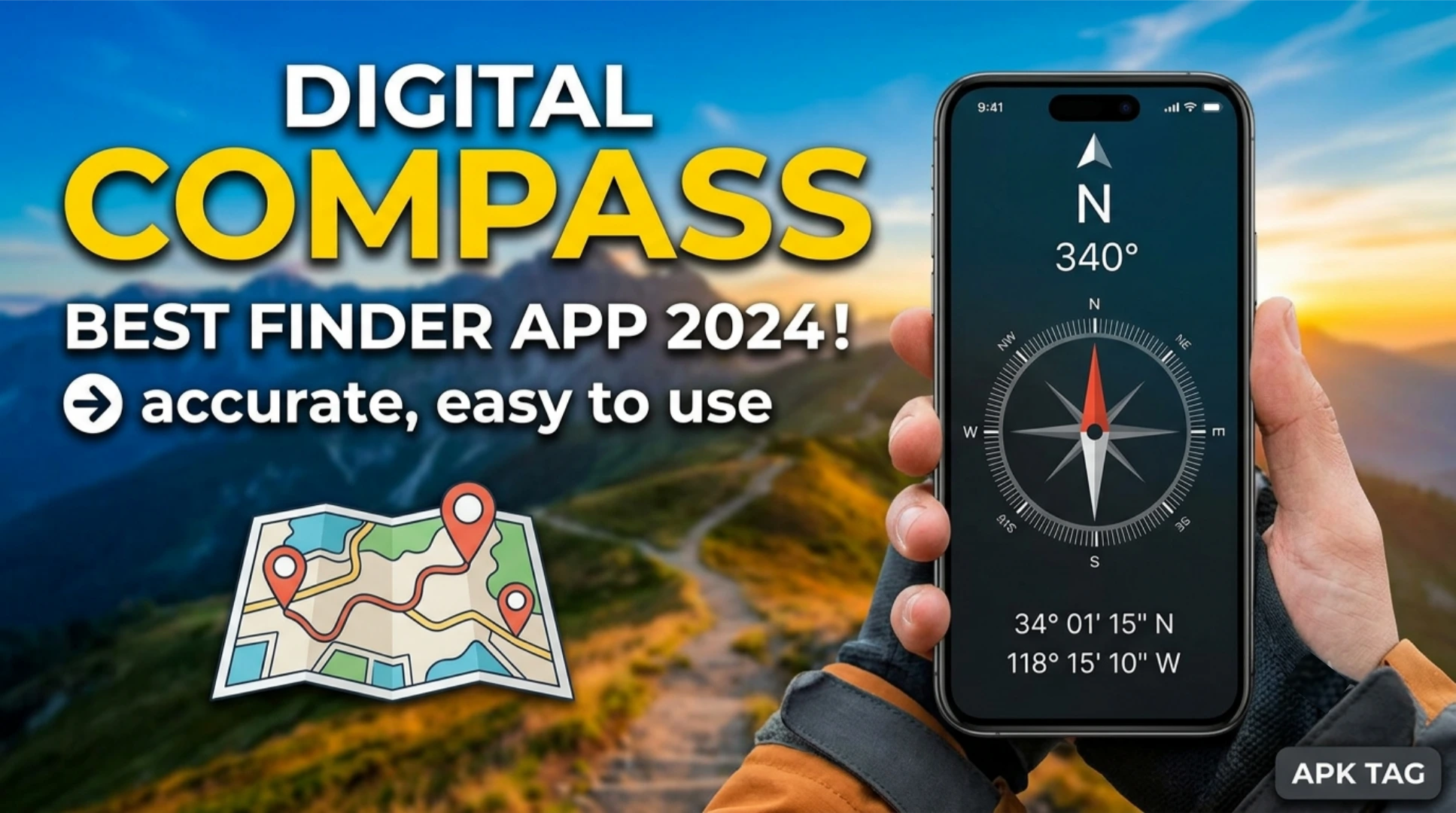
A digital compass app is a sensor-based tool. It reads data from your phone’s internal magnetometer. The magnetometer detects the Earth’s magnetic field. The app calculates your device’s orientation. It displays the direction on your screen. The app shows a rotating compass dial. The needle points to magnetic north. The app also shows true north with declination adjustment. The app is accurate within 1 to 2 degrees.
Use Cases
You navigate in remote areas without cell service. You find your orientation while hiking. You set up camping equipment facing the correct direction. You align satellite dishes or antennas. You check the Qibla direction for prayer. You use it as a backup for GPS navigation.
Core Features
Cardinal Direction Display
The app shows North, South, East, and West. The directions are labeled clearly. The labels update in real time as you move. You see the current direction at a glance.
Digital Bearing Reading
The app displays your heading in degrees. 0 degrees is North. 90 degrees is East. 180 degrees is South. 270 degrees is West. The reading updates continuously.
Magnetic vs. True North
The app shows magnetic north by default. You switch to true north with one toggle. True north adjusts for local magnetic declination. Declination varies by geographic location.
Rotating Compass Dial
The dial rotates as you turn your device. The needle stays fixed to magnetic north. The degree markings on the dial show your heading. The interface is intuitive and responsive.
Customizable Display
You change the color scheme or theme. You choose between analog and digital views. You adjust the refresh rate. You add a Qibla direction indicator.
Qibla Direction
Many compass apps include a Qibla finder. You enter your current location manually or via GPS. The app calculates the direction to Mecca. It displays the angle on the compass dial.
Level Tool
Some apps include a bubble level. The level shows if your device is flat. An accurate compass reading requires a flat device. The level helps you position your phone correctly.
Coordinate Display
The app shows your current latitude and longitude. This information comes from GPS. The coordinates help you share your location with rescue or contact.
Offline Operation
The compass works without internet or cellular service. The magnetometer is a hardware sensor. GPS coordinates are not required for direction. The app is reliable in remote areas.
How to Download and Install
Play Store Method (Recommended)
Open the Google Play Store. Search for “Digital Compass.” Select an app with high ratings and many downloads. Popular apps include “Digital Compass” by PixelProse and “Compass Steel 3D.” Tap install. Wait for completion. Open the app. Grant location and sensor permissions.
Free Version
Most compass apps are free. They contain ads. A pro version removes ads and adds features. Pro versions cost 1 to 5 USD.
APK Method
You download the APK from third-party sites. This method carries risks. Enable unknown sources in your settings. Download the APK from a trusted site like APKMirror. Tap the APK file to install. Grant permissions during installation.
Why Use the Play Store Version
The Play Store version updates automatically. The Play Store version includes Google’s security checks. The Play Store version is verified. The APK version may contain malware. The APK version may not update. Use the Play Store version for safety.
Step-by-Step Usage Instructions
Step 1: Open the App
Launch the app from your app drawer. The compass dial appears immediately. The needle may be unsteady initially.
Step 2: Calibrate Your Device
Hold your phone flat in your hand. Move your hand in a figure-8 pattern. Rotate the phone along all three axes. The calibration finishes in 5 to 10 seconds. The needle becomes stable.
Step 3: Read the Direction
Hold the phone flat and level. The front of the phone points in the direction you face. The needle points to magnetic north. The degree reading shows your heading. The cardinal direction label updates.
Step 4: Switch to True North
Tap the “Magnetic/True” toggle. The app adjusts for local declination. The needle points to geographic north. Use true north for map reading.
Step 5: Find Qibla Direction
Tap the “Qibla” or “Prayer” icon. Enter your city name or use GPS. The app shows the Qibla angle. Rotate your phone until the angle aligns. The arrow points to Mecca.
Step 6: Use the Level
Tap the “Level” or “Bubble” icon. Place your phone on a flat surface. The bubble centers when level. Return to the compass for accurate readings.
Step 7: Check Coordinates
Tap the “Info” or “GPS” icon. Your latitude and longitude appear. You copy these coordinates. You share them via message or email.
Step 8: Lock the Reading
Tap the lock icon to freeze the bearing. This is useful for taking notes. Tap again to resume live readings.
Calibration Guide
Why Calibration is Essential
The magnetometer needs calibration. Metal objects and magnetic fields interfere. The sensor learns the local magnetic environment. Calibration ensures accurate readings.
Manual Figure-8 Movement
This is the most common calibration method. Hold your phone in your hand. Extend your arm. Make a slow figure-8 pattern in the air. Rotate the phone through all angles. Repeat for 10 seconds. The needle steadies.
Automatic Calibration
Many apps calibrate automatically. The app prompts you when calibration is needed. Follow the on-screen instructions. The app uses algorithms to filter noise.
Calibration Indicators
The app shows a progress bar or circle. A full circle indicates calibration. A blinking needle means calibration is required. Some apps display a “Calibrate” button.
When to Recalibrate
Recalibrate after changing your location. Recalibrate when the needle is unstable. Recalibrate after placing your phone near magnets. Recalibrate after a system restart.
Accuracy and Limitations
Accuracy
Modern magnetometers are accurate to 1 degree. Accuracy depends on calibration. Accuracy also depends on the magnetic environment. Steel buildings and cars cause interference.
Interference Sources
Magnetic phone cases and magnetic mounts interfere. Nearby vehicles and metal structures interfere. Power lines and electrical equipment interfere. Smartphone speakers and magnets interfere.
Limitations
The compass does not work in elevators. The compass does not work in metal buildings. The compass does not work near strong magnets. The sensor needs periodic calibration.
GPS vs. Compass
GPS gives location coordinates. Compass gives direction. GPS works outdoors only. Compass works indoors and outdoors. Both are complementary.
Conclusion
A digital compass app is a practical navigation tool. It is useful for outdoor activities and travel. The app works offline and is easy to use. Use the Play Store version for security. Calibrate your device before use. Hold the phone flat and level. Check the magnetic vs. true north setting. Carry a physical compass as a backup. Explore the features like Qibla and level. Enjoy reliable direction guidance on your Android device.